Turn a Photo into Pixel Art
Give your photo a retro pixel-art look in Lineora. Compare a real example, choose a clear subject and learn what this style can do for avatars and keepsakes.
Create in the Lineora app for iPhone and Android. Download the app, select your photo and choose a style or activity.
What this style does
Pixel Art reimagines the subject with block-like shapes, crisp outlines and compact areas of color, inspired by 16-bit game artwork. It is an AI interpretation of your photo, so the composition and background can change. It is not a precision pixel-grid editor.
From the same photo
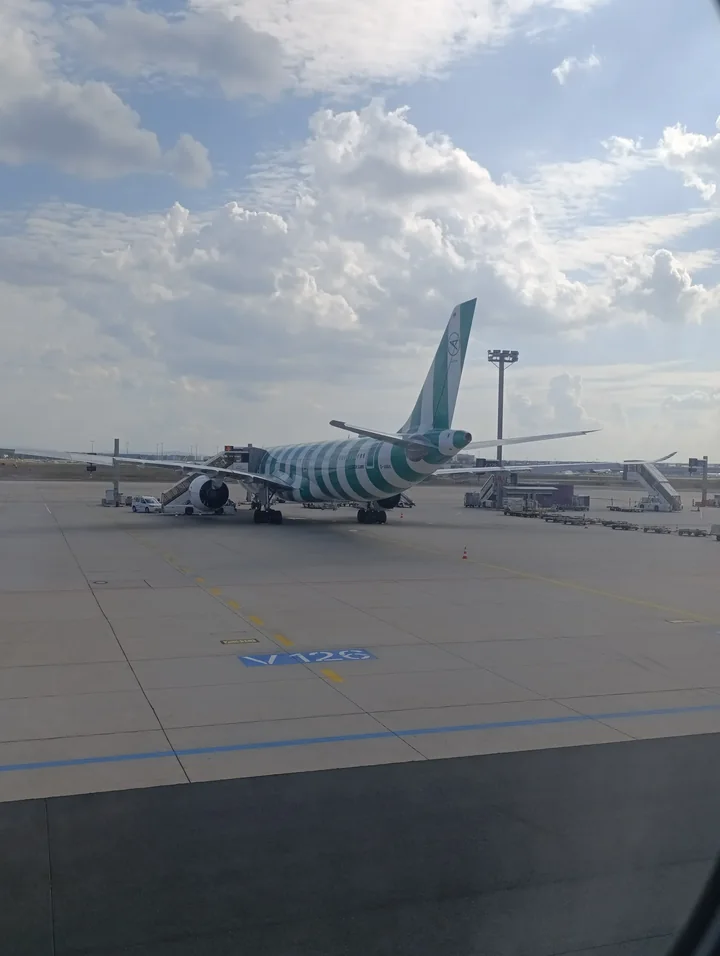
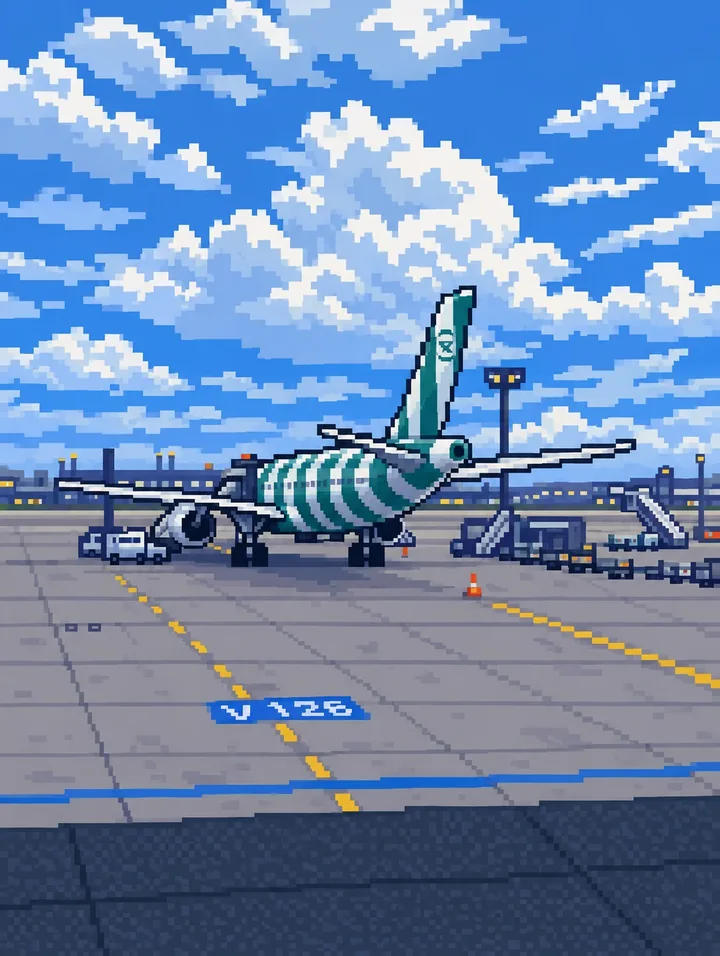
Airplane on the apron
The aircraft, clouds and apron markings become stepped blocks, keeping the plane recognizable in a brighter scene.
Rendered with Lineora’s High Quality option. Each generation can vary.
More photo examples
These photos were rendered with Lineora’s High Quality option. Results can vary; open either image for a closer look.
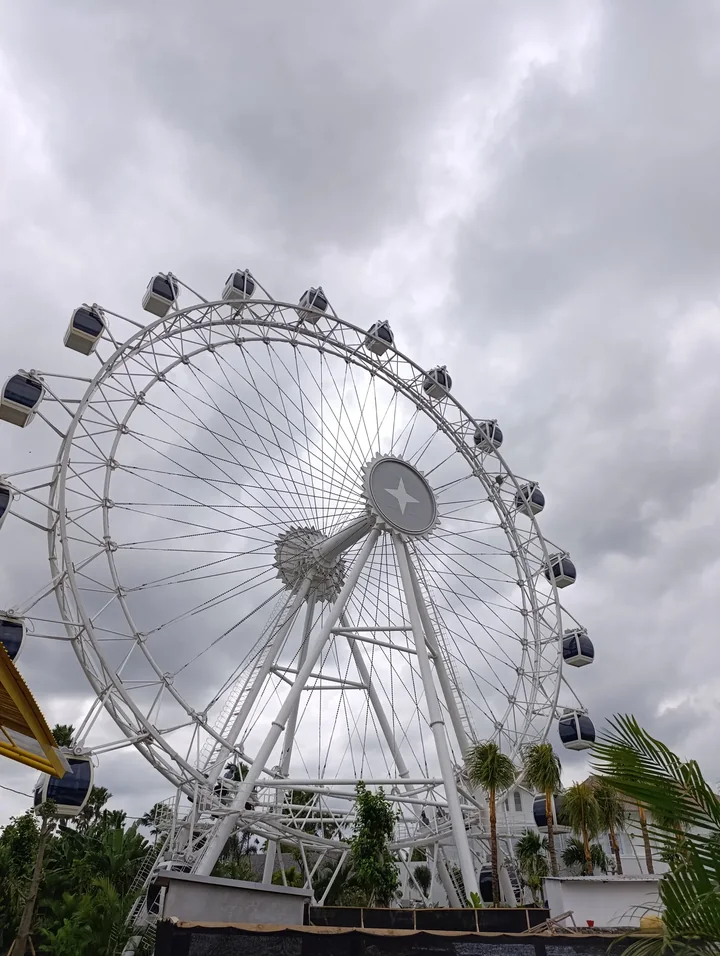
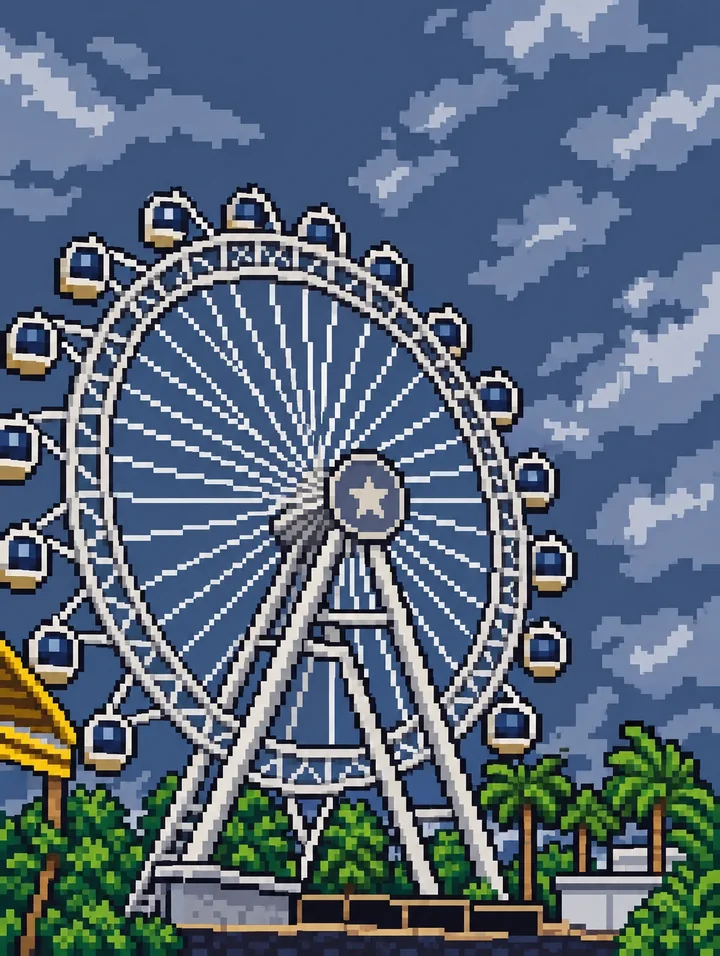
Ferris wheel under clouds
The wheel’s spokes and gondolas become pixel outlines against a darker blue sky; palms simplify into small clusters.
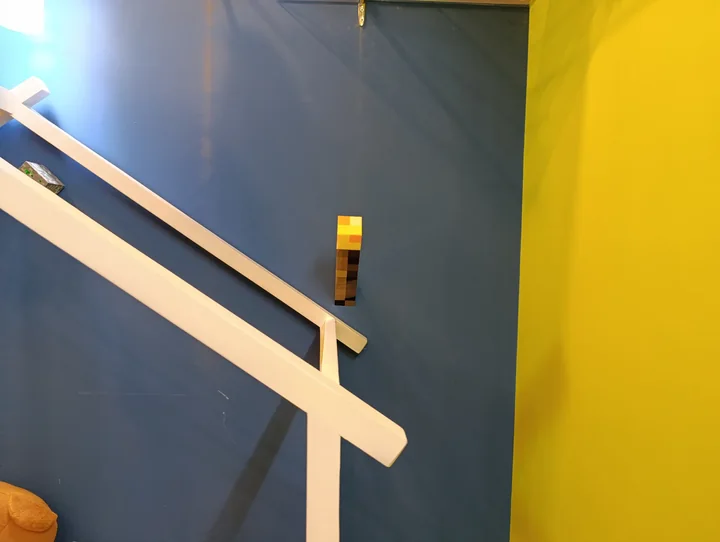
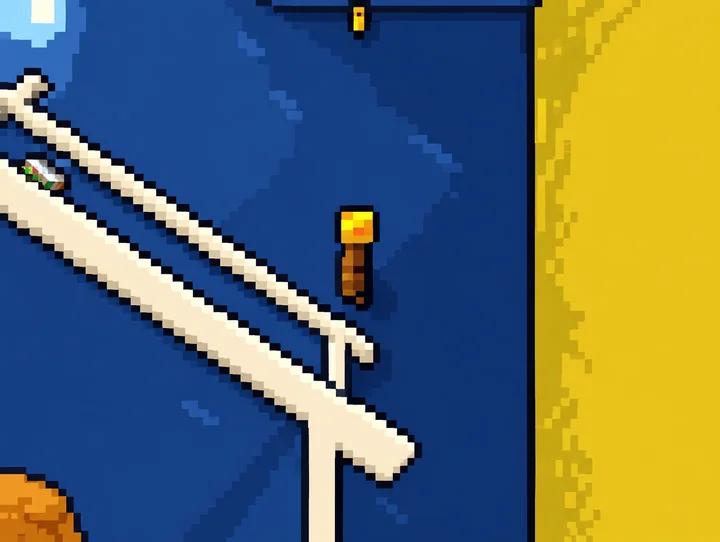
Yellow wall and diagonal railing
The diagonal railing becomes a stepped cream line against blue and yellow blocks, emphasizing the photo’s simple geometry.
Ideas for your photos
Try a close portrait for a gaming profile, a pet with a distinctive silhouette, or a favorite object for a retro keepsake. Simple poses and strong color contrasts survive the blocky treatment more clearly than distant faces or detailed scenery.
Choose a photo that works well
Crop tightly around the important subject, with a little room around its outline. Avoid tiny lettering, dense patterns and overlapping people. Check whether the result still reads well at the small size where you plan to use it.
Make this look in Lineora
Open Lineora on iPhone or Android and select a photo. Choose Pixel Art from the style picker, then generate your image. Compare the result with the original before saving, sharing or exporting a PDF. AI can reinterpret faces, lettering and small details; try a clearer crop if an important feature gets lost.
Which style should you choose?
Choose Pixel Art for a retro game-like appearance. Anime offers smoother contours and fuller scenes. For a numbered coloring worksheet, choose the separate color-by-number activity.
Turn a Photo into a Coloring Page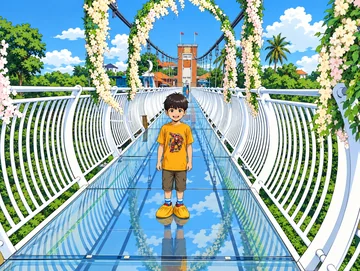
Save, share and print your result
Export a PDF from your gallery and check the paper size in your printer settings. Review the print preview and keep the margins visible. You can combine several finished drawings into one PDF.
Common questions
- Can I set an exact 32×32 grid or export a game sprite sheet?
- This style does not provide those controls. It creates a pixel-art-style image, not a guaranteed grid, palette, transparent sprite or animation sheet. Use a pixel editor if your project needs those specifications.
- Can I create a picture on this website?
- This website shows what Lineora can make. To transform your own photo, use the iOS or Android app. AI generation needs an internet connection.
- Does Lineora need a subscription?
- No. One credit pays for one finished drawing, and purchased credits never expire. At zero credits, you can earn a free drawing by watching a rewarded ad, subject to availability and daily limits.
- Can I print several drawings together?
- Yes. Select drawings in your gallery and export a PDF. For ad-funded drawings, the app can request an additional ad for sharing or PDF export and include a watermark.