Turn a Photo into Pop Art
Turn a photo into bold pop art with Lineora. See the halftone example, learn how to choose a strong portrait and explore ideas for avatars, cards and prints.
Create in the Lineora app for iPhone and Android. Download the app, select your photo and choose a style or activity.
What this style does
Pop Art interprets the photo with strong black contours, flat color blocks and halftone dots. Bright red, yellow and blue areas create a graphic print-like finish. It emphasizes shape and contrast rather than realistic skin tones or subtle photographic gradients.
From the same photo
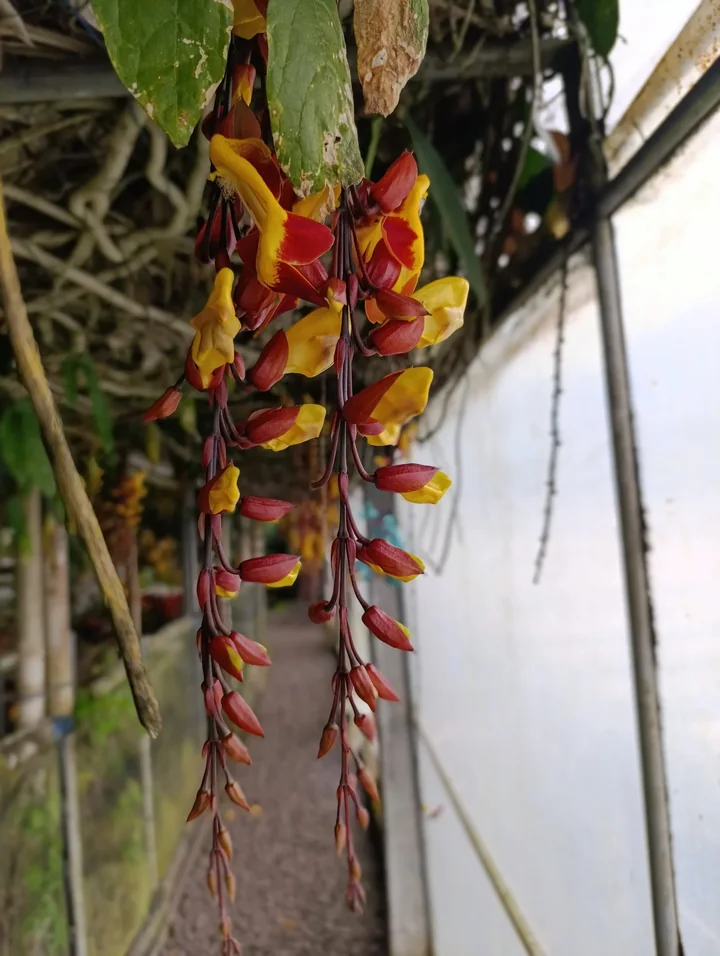
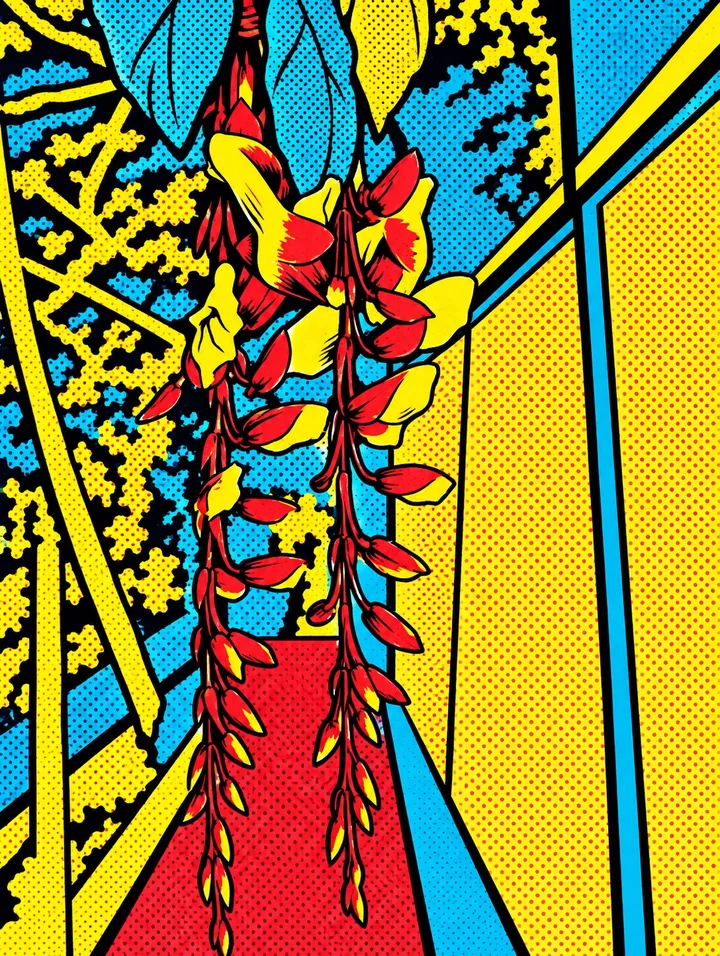
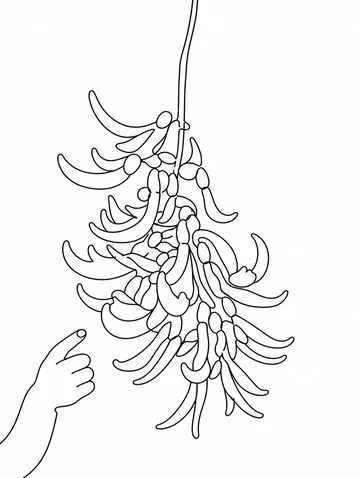
Hanging red and yellow flowers
The hanging flowers gain black contours against red, yellow and blue panels, with halftone dots replacing natural texture.
Rendered with Lineora’s High Quality option. Each generation can vary.
More photo examples
These photos were rendered with Lineora’s High Quality option. Results can vary; open either image for a closer look.
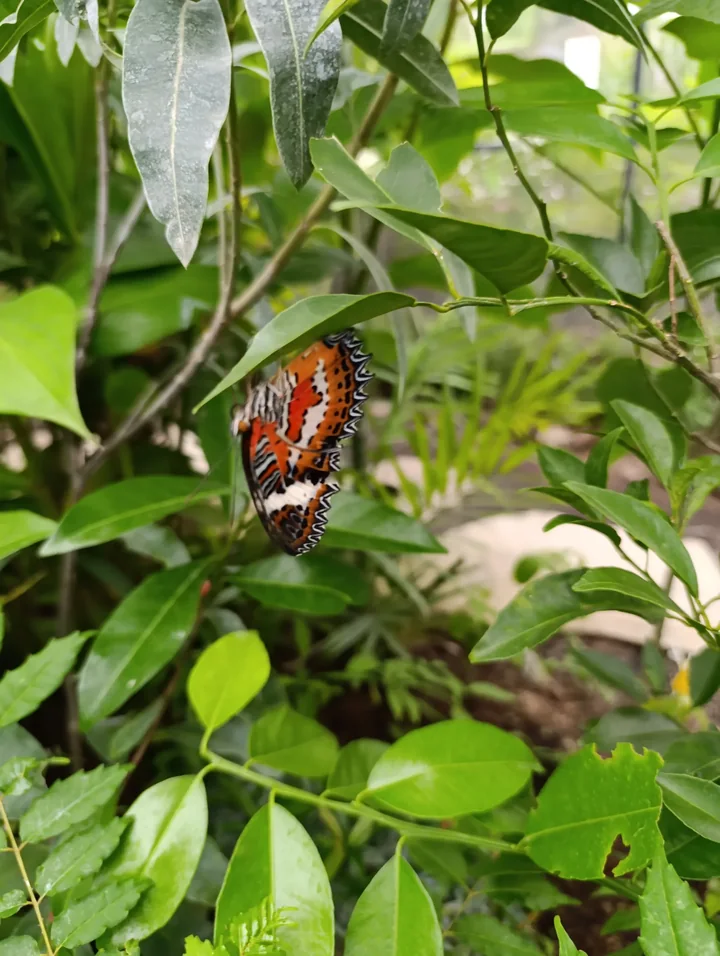
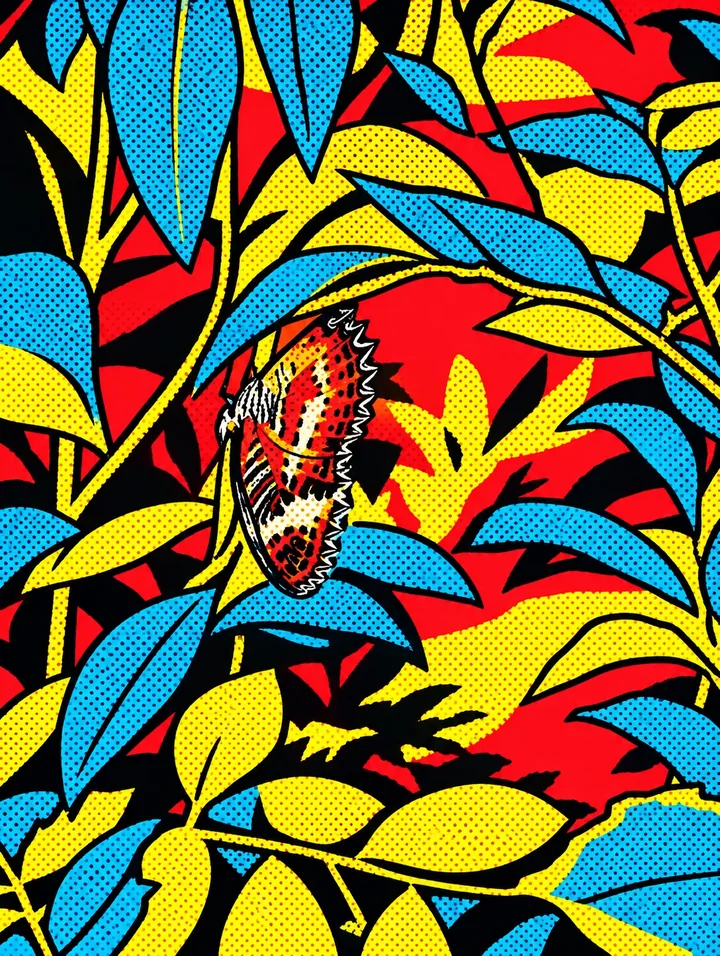
Orange butterfly among leaves
Orange wing markings stand out among oversized blue and yellow leaves; black outlines flatten the tangled foliage.
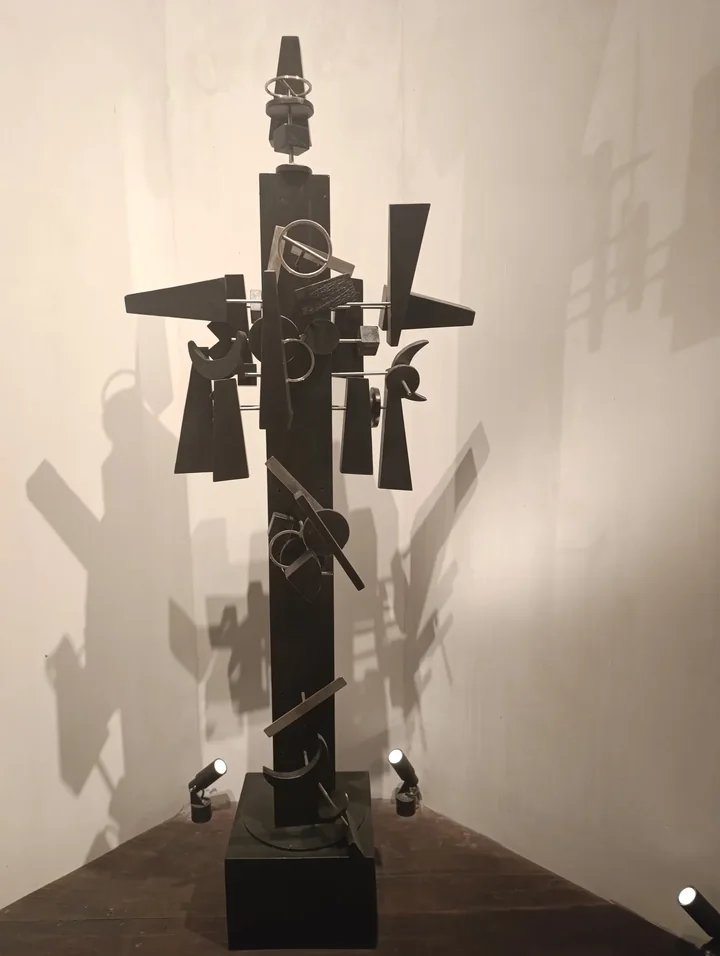
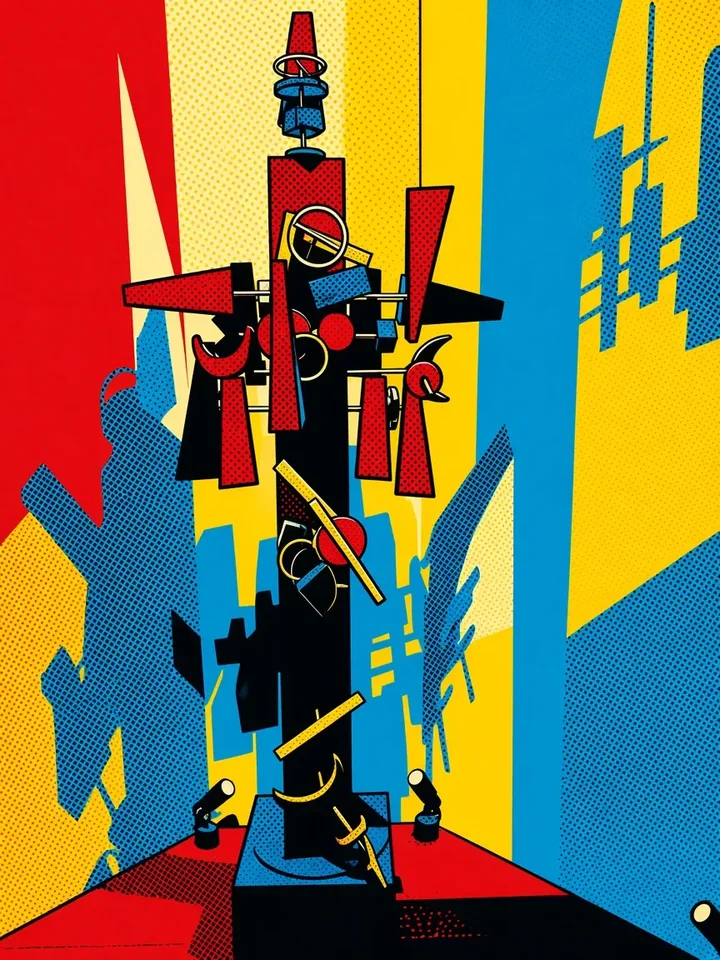
Angular metal sculpture
The dark sculpture keeps its angular silhouette, while red, yellow and blue planes turn its shadows into graphic shapes.
Ideas for your photos
Try a portrait for a bold profile picture, a pet with a clear silhouette, or a personal card illustration. Leave room around the subject when you plan to add a message in another layout tool; the style itself does not provide a text editor.
Choose a photo that works well
Choose a recognizable pose with clear separation between subject and background. A plain wall or uncluttered scene is easier to read after colors flatten. Check skin, hair and small patterns so heavy outlines do not hide an important feature.
Make this look in Lineora
Open Lineora on iPhone or Android and select a photo. Choose Pop Art from the style picker, then generate your image. Compare the result with the original before saving, sharing or exporting a PDF. AI can reinterpret faces, lettering and small details; try a clearer crop if an important feature gets lost.
Which style should you choose?
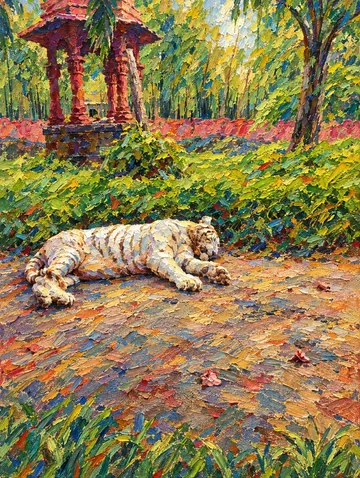
Choose Pop Art for flat, high-contrast color and print dots. Anime uses illustrated facial proportions and cel shading; Oil Paint creates thick brush textures instead.
Turn a Photo into a Coloring Page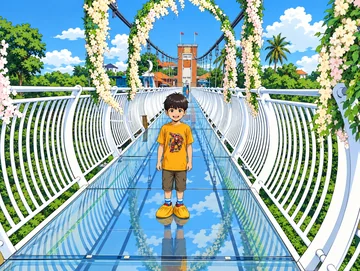
Save, share and print your result
Export a PDF from your gallery and check the paper size in your printer settings. Review the print preview and keep the margins visible. You can combine several finished drawings into one PDF.
Common questions
- Does this style automatically make a four-panel pop-art poster?
- No. It produces one pop-art-style image per generation. To arrange several images into a poster or add lettering, use a separate layout editor after exporting.
- Can I create a picture on this website?
- This website shows what Lineora can make. To transform your own photo, use the iOS or Android app. AI generation needs an internet connection.
- Does Lineora need a subscription?
- No. One credit pays for one finished drawing, and purchased credits never expire. At zero credits, you can earn a free drawing by watching a rewarded ad, subject to availability and daily limits.
- Can I print several drawings together?
- Yes. Select drawings in your gallery and export a PDF. For ad-funded drawings, the app can request an additional ad for sharing or PDF export and include a watermark.