AI Tattoo Art from Your Photo
Turn a photo into American traditional tattoo art with Lineora. Compare three real before-and-after examples, explore flash-style ideas and prepare a visual reference from your own image.
Create in the Lineora app for iPhone and Android. Download the app, select your photo and choose a style or activity.
What this style does
Lineora’s Tattoo style reimagines a photo as American traditional tattoo flash: strong black outlines, red, gold and green accents, compact shading and an aged-paper look. An AI tattoo generator can help you explore a motif before choosing a direction; here, the starting point is your photo and the look is this specific preset. It can simplify a face, exaggerate a silhouette or add decorative flowers and stars. The result is a digital illustration for inspiration, with composition and details interpreted by AI.
From the same photo
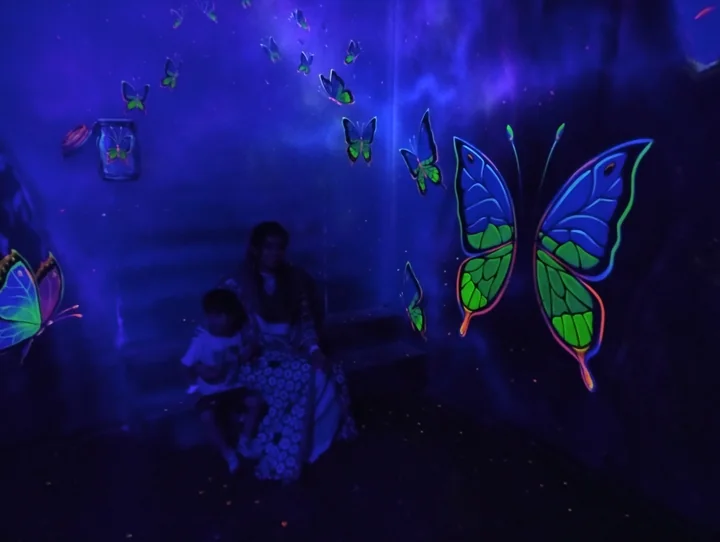
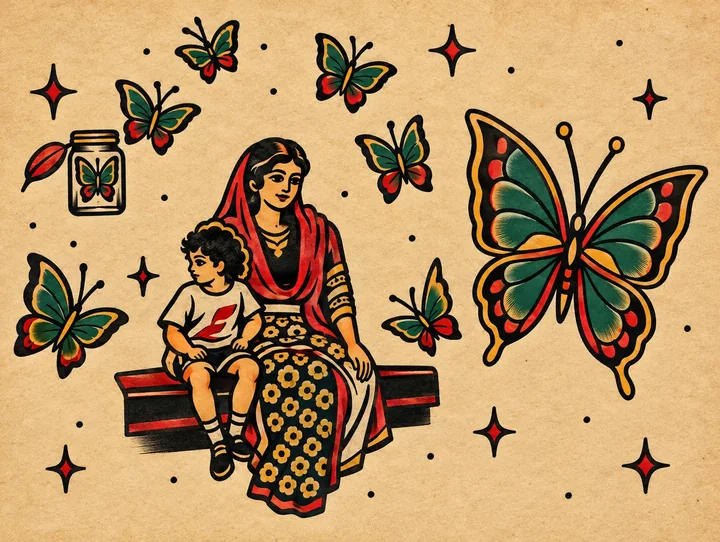
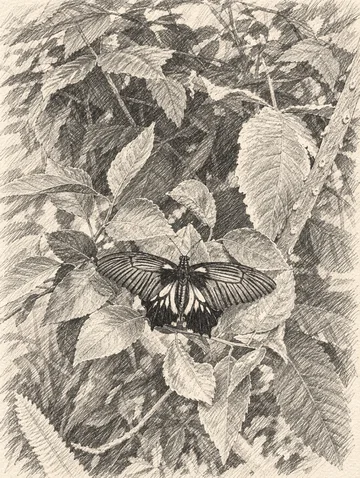
Butterfly display
Butterflies and seated figures become bold red, green and gold motifs on aged-looking paper; stars and other decorations are added.
Rendered with Lineora’s High Quality option. Each generation can vary.
More photo examples
These photos were rendered with Lineora’s High Quality option. Results can vary; open either image for a closer look.
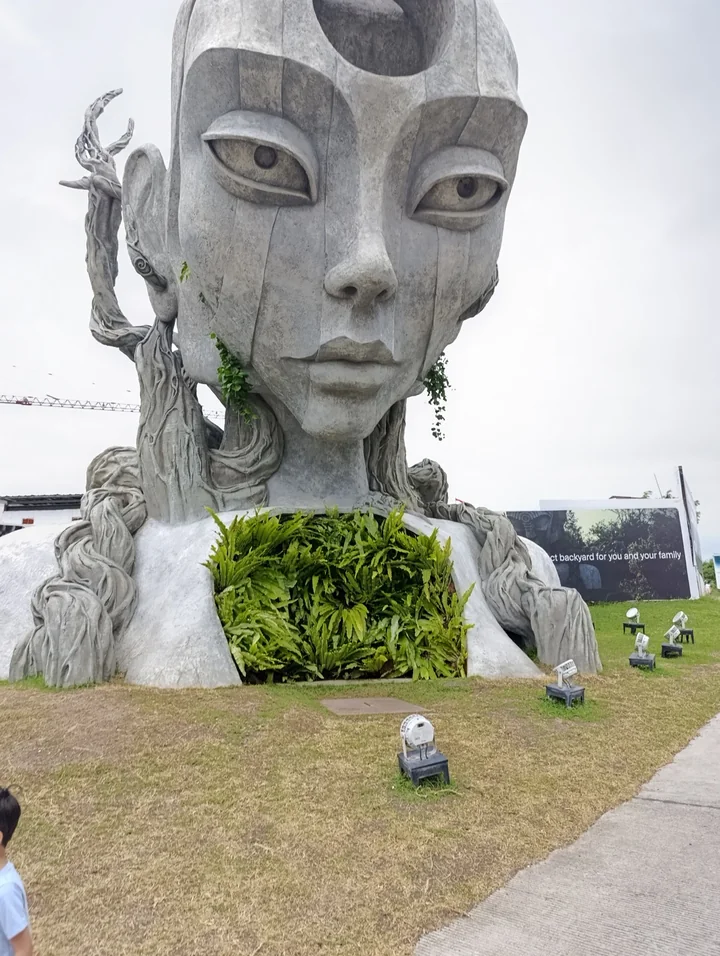
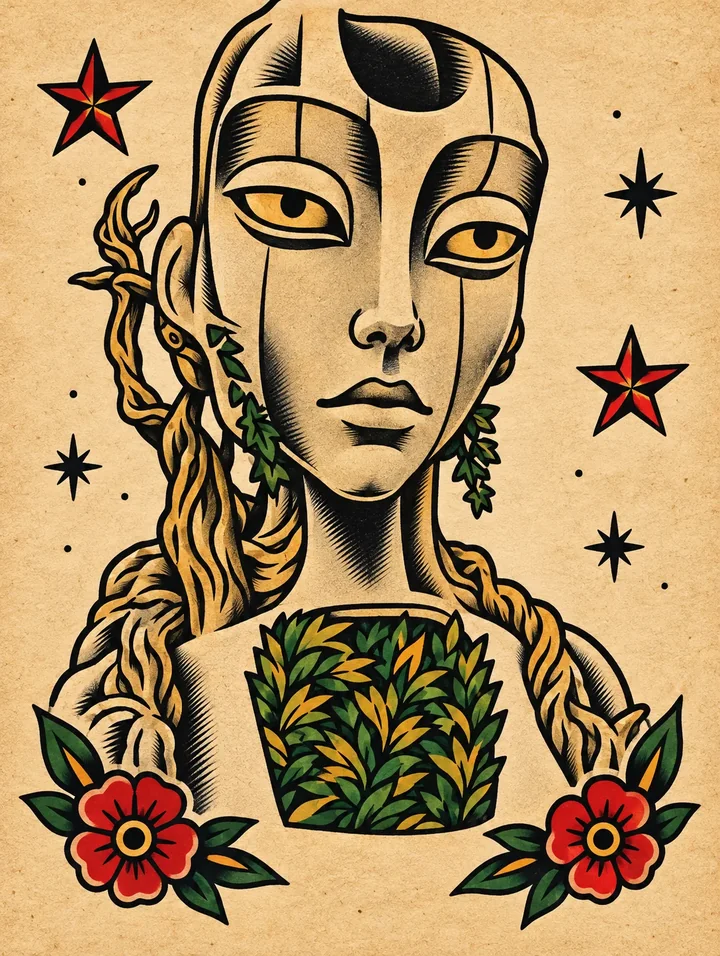
Stone face sculpture
The stone face becomes a gold-and-black flash motif with red flowers and stars. The lawn and small foreground figure disappear.
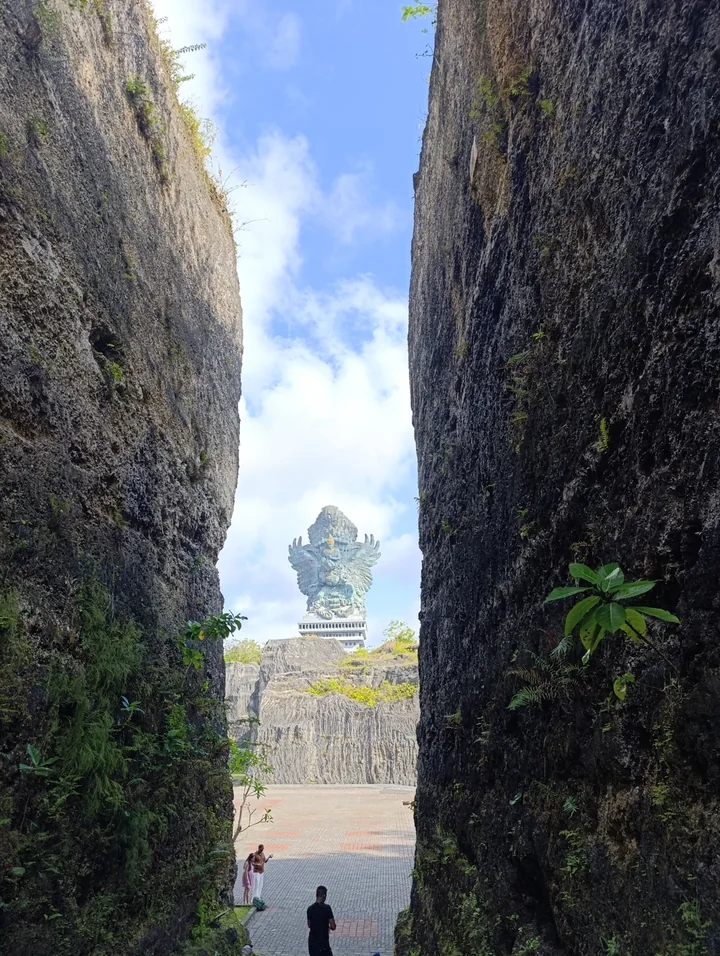
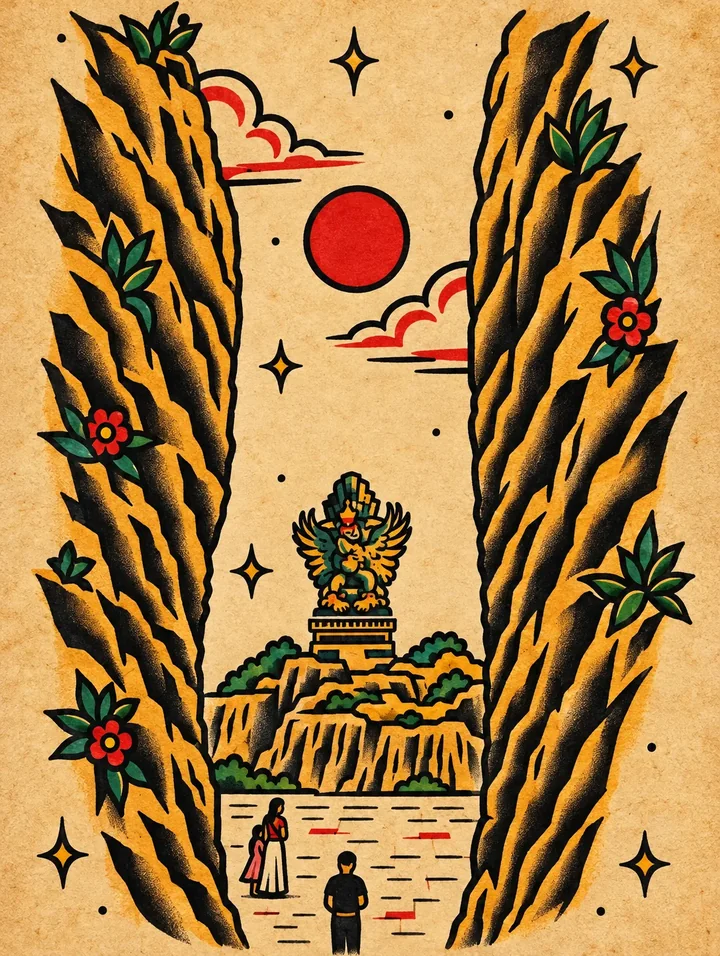
Passage between cliffs
Dark rock walls become gold-edged shapes around a red sun. Flowers and stars replace much of the natural surface texture.
Ideas for your photos
Try a flower, a pet with a clear profile, a meaningful object or a travel landmark. A single recognizable silhouette makes a focused tattoo-art concept; a wider scene can become a decorative flash-style print. Save several results to compare the balance of dark outlines and open space. If you want an actual tattoo, use the image to discuss your idea with an artist who can redraw it for the placement and size.
Choose a photo that works well
Choose a photo with a distinct subject and crop away objects that do not matter to your idea. A close flower or animal is easier to simplify than a large group. Review any added symbols, faces and small lettering before saving. The butterfly example shows how strongly the style can invent a new palette and surrounding motifs; your result may differ rather than trace every original detail.
Make this look in Lineora
Open Lineora on iPhone or Android and select a photo. Choose Tattoo Flash from the style picker, then generate your image. Compare the result with the original before saving, sharing or exporting a PDF. AI can reinterpret faces, lettering and small details; try a clearer crop if an important feature gets lost.
Which style should you choose?
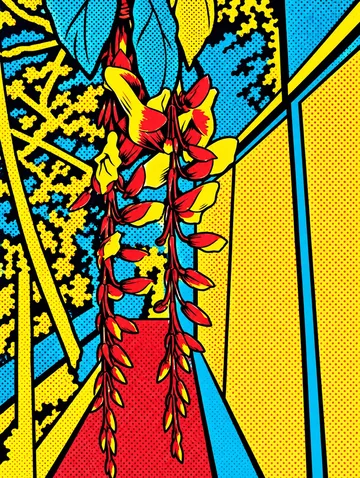
Choose Tattoo for bold outlines, limited color and a vintage flash-sheet feel. Minimal Line Art removes color and most background detail. Pop Art keeps bright graphic color but uses halftone dots and a poster-like treatment instead of traditional tattoo shading.
Turn a Photo into a Coloring Page
Save, share and print your result
Export a PDF from your gallery and check the paper size in your printer settings. Review the print preview and keep the margins visible. You can combine several finished drawings into one PDF.
Common questions
- Can I use this as a tattoo stencil or try a tattoo on my skin?
- Lineora generates photo-based tattoo artwork, not a placement preview or a print-ready tattoo stencil. It does not offer lettering controls or exact line-width specifications. For a real tattoo, ask your artist to adapt the concept; a visually appealing image alone does not establish that the design will work at the intended size.
- Can I create a picture on this website?
- This website shows what Lineora can make. To transform your own photo, use the iOS or Android app. AI generation needs an internet connection.
- Does Lineora need a subscription?
- No. One credit pays for one finished drawing, and purchased credits never expire. At zero credits, you can earn a free drawing by watching a rewarded ad, subject to availability and daily limits.
- Can I print several drawings together?
- Yes. Select drawings in your gallery and export a PDF. For ad-funded drawings, the app can request an additional ad for sharing or PDF export and include a watermark.