Turn Your Photo into Anime Art
Make an anime-style illustration from a photo with Lineora for iOS and Android. See the color anime example and learn how it differs from manga line art.
Create in the Lineora app for iPhone and Android. Download the app, select your photo and choose a style or activity.
What this style does
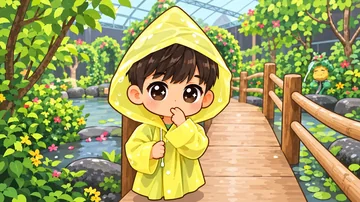
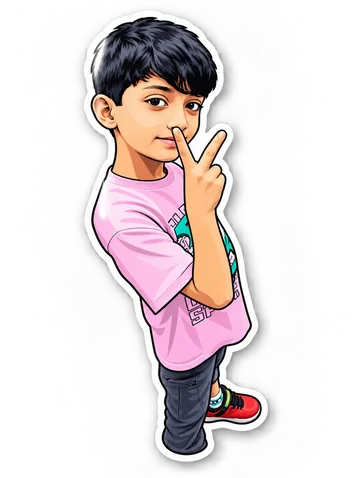
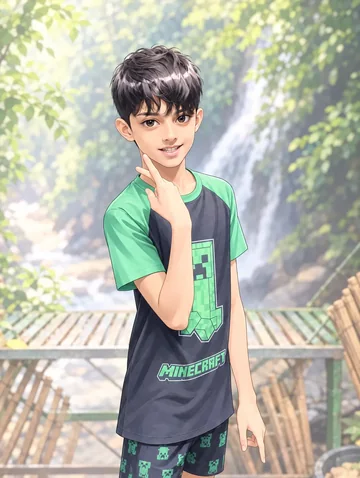
Anime redraws the photo with clean contours, expressive eyes and flat areas of color separated by clear shadows. It creates a finished color illustration inspired by animation artwork. Facial proportions and details may change as the photo is reinterpreted.
From the same photo
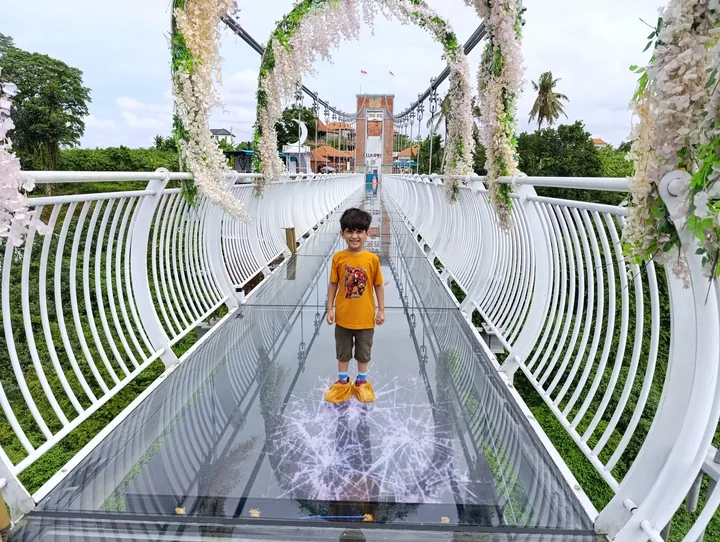
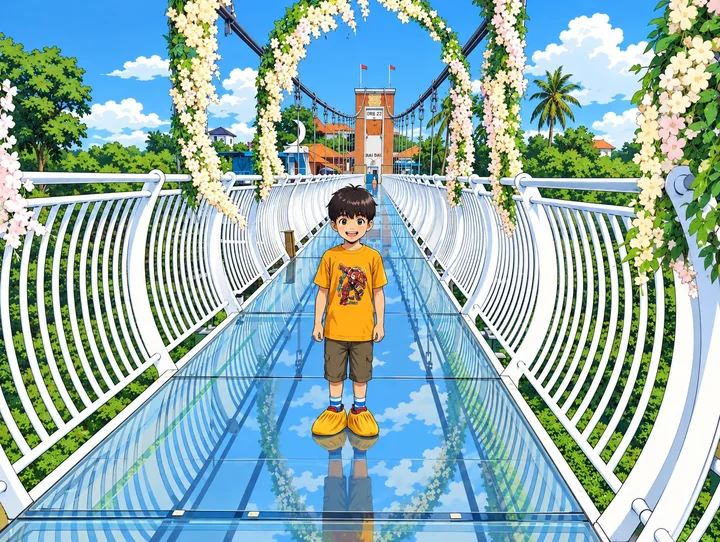
Child on a footbridge
Crisp white railings and flat blue shadows frame the child, whose face becomes an illustrated character.
Rendered with Lineora’s High Quality option. Each generation can vary.
More photo examples
These photos were rendered with Lineora’s High Quality option. Results can vary; open either image for a closer look.
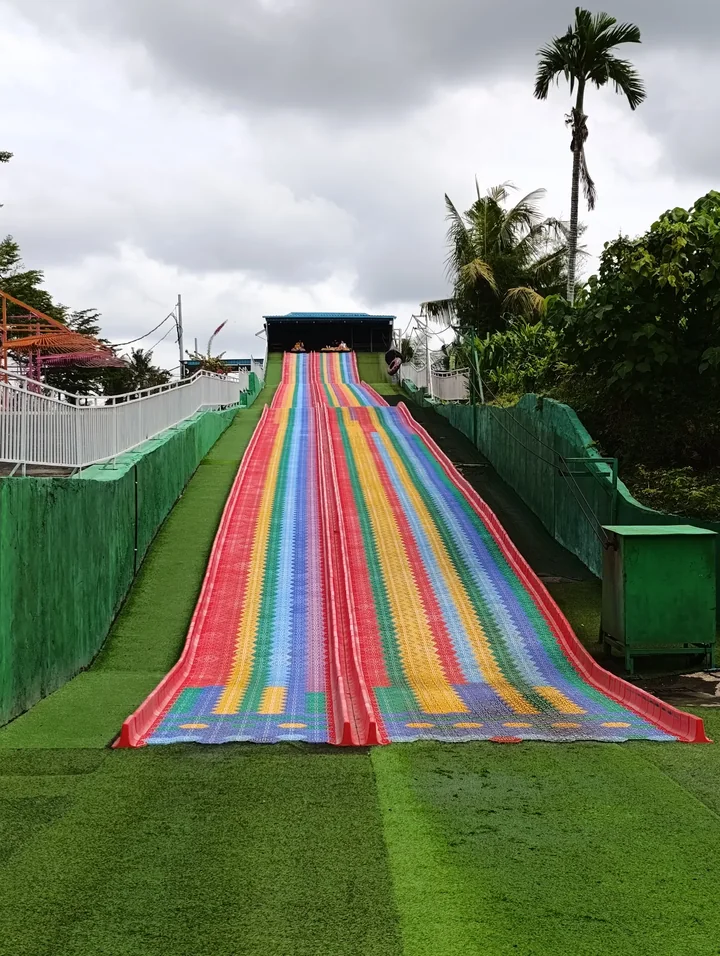
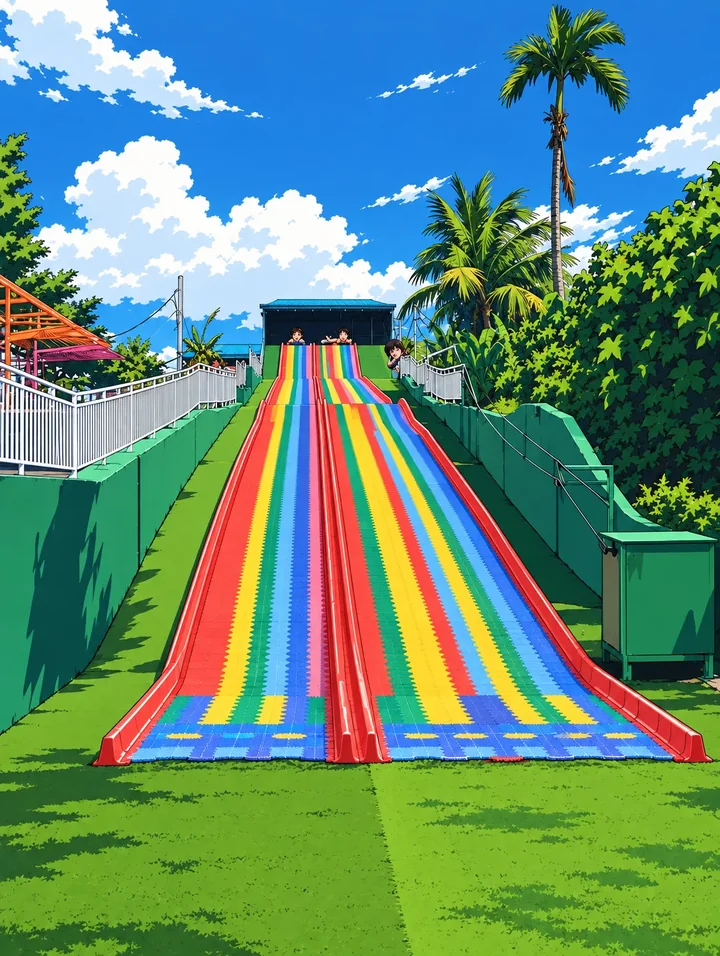
Rainbow slide
The gray sky turns bright blue, while rainbow lanes gain flat colors and sharply separated shadows.
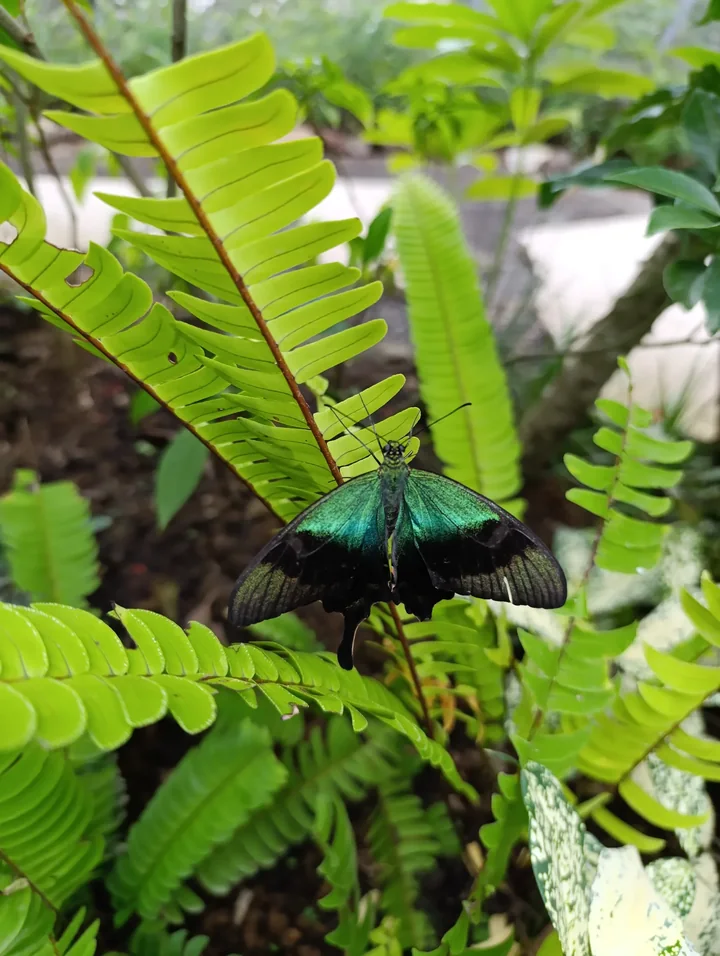
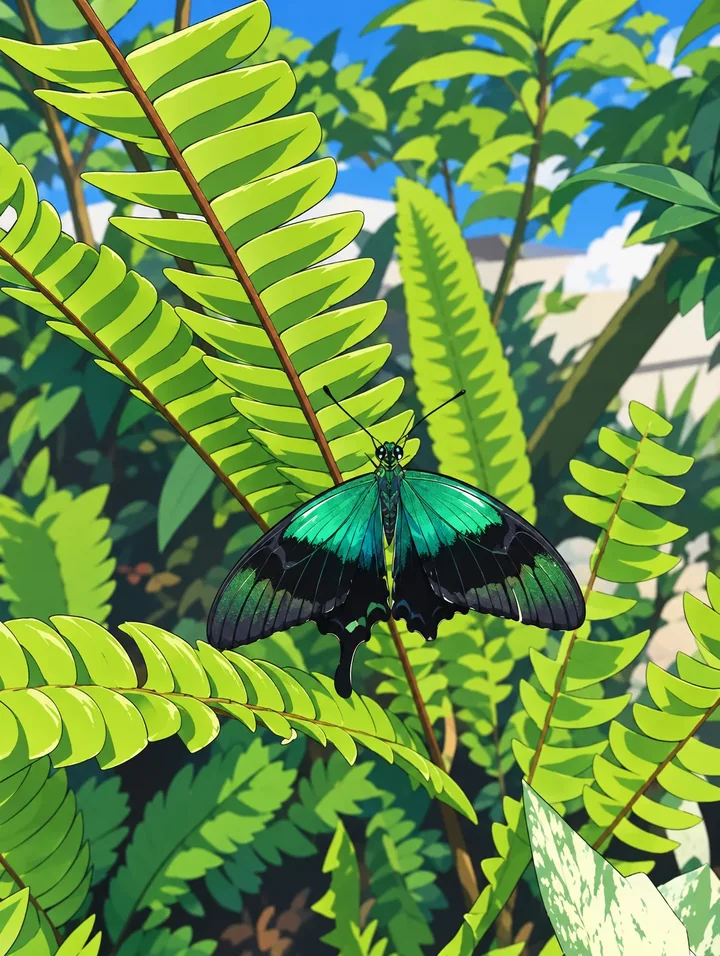
Green butterfly on fern leaves
Fern leaflets become clean repeated shapes around the dark butterfly, with flat shadows separating the foliage.
Ideas for your photos
Try a selfie as a profile picture, a pet portrait as a playful character, or a travel memory as an illustrated scene. For an avatar, choose a close crop with the face large enough to remain readable in a small circle. Check the crop in the destination app after exporting.
Choose a photo that works well
Use a clear face, visible eyes and even light. Avoid heavy face filters, motion blur and very distant groups. Begin with one or two subjects and review hands, expressions and small accessories before sharing.
Make this look in Lineora
Open Lineora on iPhone or Android and select a photo. Choose Anime from the style picker, then generate your image. Compare the result with the original before saving, sharing or exporting a PDF. AI can reinterpret faces, lettering and small details; try a clearer crop if an important feature gets lost.
Which style should you choose?
Choose Anime for a full-color illustration. Manga in the coloring-book family produces black-and-white outlines for coloring. Storybook gives a gentler painted illustration, while Chibi uses more exaggerated proportions.
Turn a Photo into a Coloring Page
Save, share and print your result
Export a PDF from your gallery and check the paper size in your printer settings. Review the print preview and keep the margins visible. You can combine several finished drawings into one PDF.
Common questions
- Does the Anime style make an animated video?
- No. It creates a still image with an anime look. It does not add movement or guarantee the exact appearance of a particular character or animation studio.
- Can I create a picture on this website?
- This website shows what Lineora can make. To transform your own photo, use the iOS or Android app. AI generation needs an internet connection.
- Does Lineora need a subscription?
- No. One credit pays for one finished drawing, and purchased credits never expire. At zero credits, you can earn a free drawing by watching a rewarded ad, subject to availability and daily limits.
- Can I print several drawings together?
- Yes. Select drawings in your gallery and export a PDF. For ad-funded drawings, the app can request an additional ad for sharing or PDF export and include a watermark.