Turn a Photo into Minimal Line Art
Create minimalist line art from a photo with Lineora’s One Line style. Compare flowers, a human pose and decorative figures as simple black contours on a white background.
Create in the Lineora app for iPhone and Android. Download the app, select your photo and choose a style or activity.
What this style does
One Line interprets the subject through flowing contours inspired by continuous-line drawing. Color, shading and much of the background fall away, leaving a light black outline and open white space. It is a selective redrawing rather than an edge detector that traces everything in the photograph. A distinctive posture, pet profile or flower shape can remain recognizable with fewer marks. The style aims for a single-line appearance, but generated images can contain separate strokes, overlaps and additional details.
From the same photo
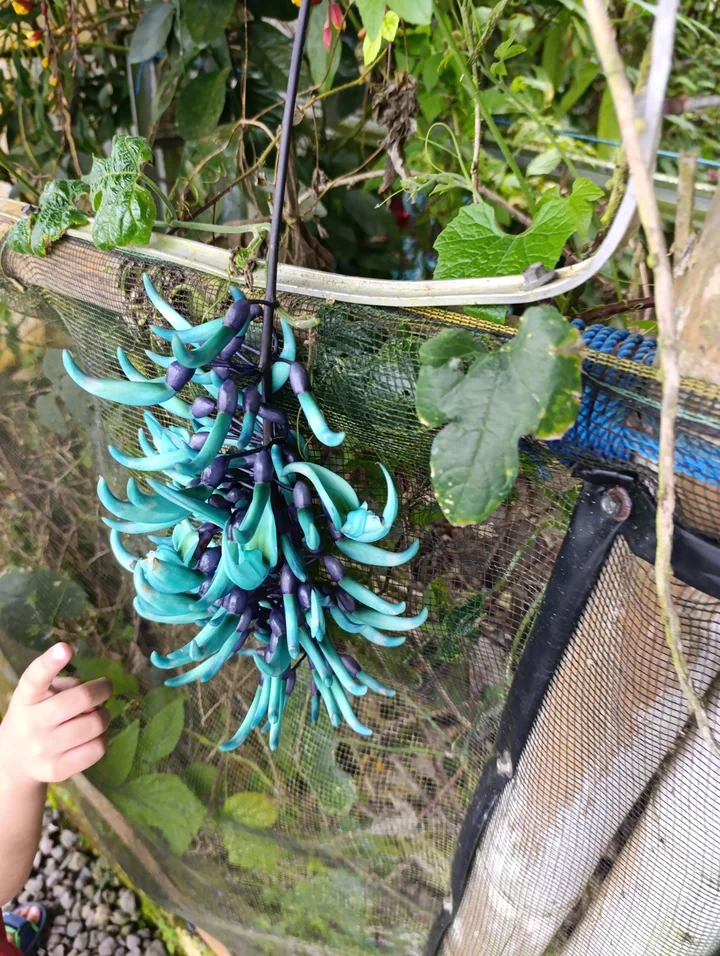
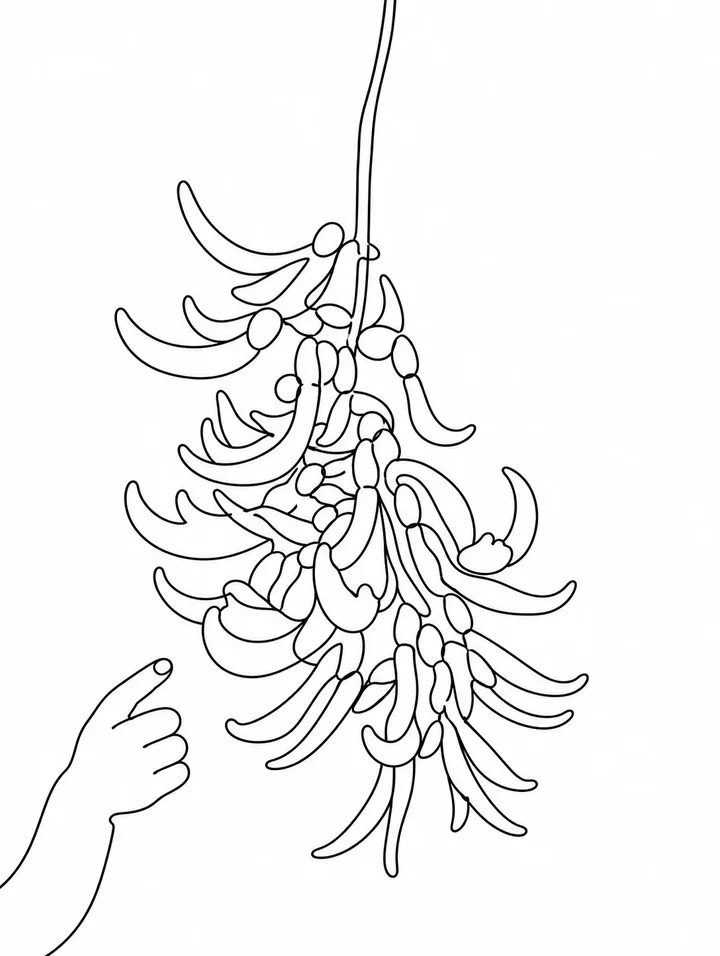
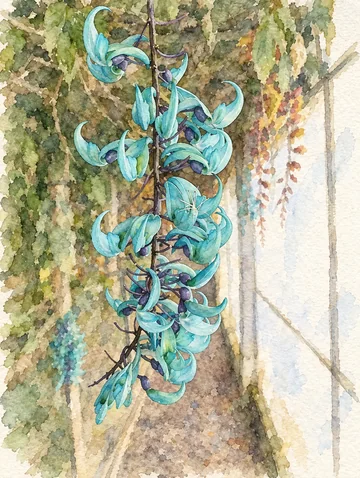
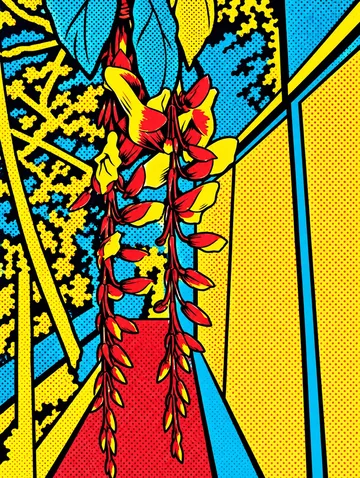
Hanging flowers and a hand
Curved petals and the reaching hand remain in fine contours; color, leaves and the greenhouse background give way to white space.
Rendered with Lineora’s High Quality option. Each generation can vary.
More photo examples
These photos were rendered with Lineora’s High Quality option. Results can vary; open either image for a closer look.
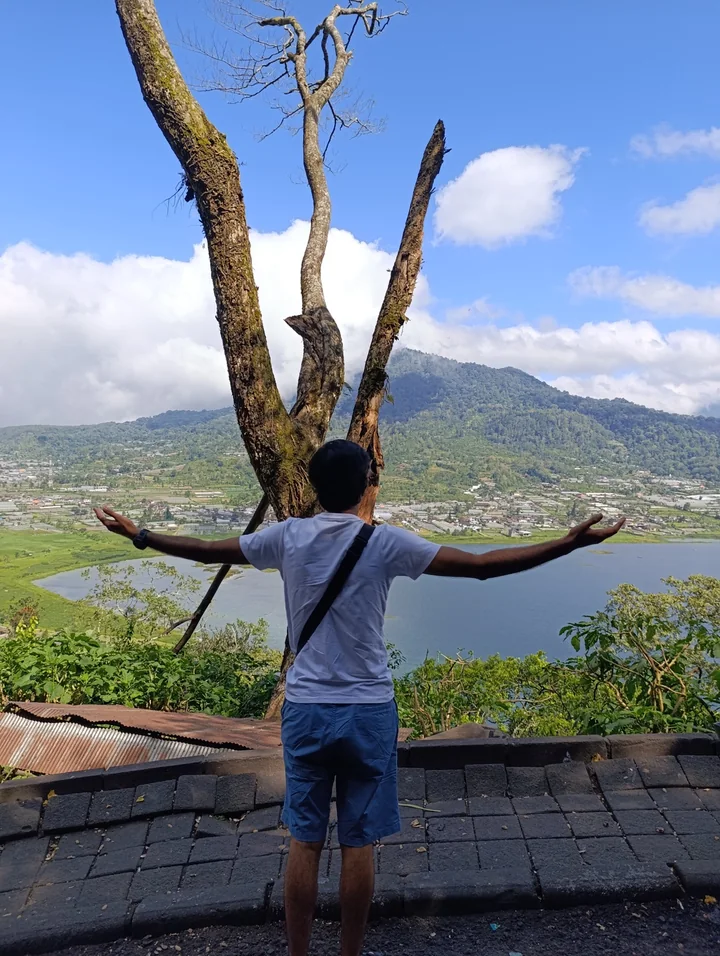
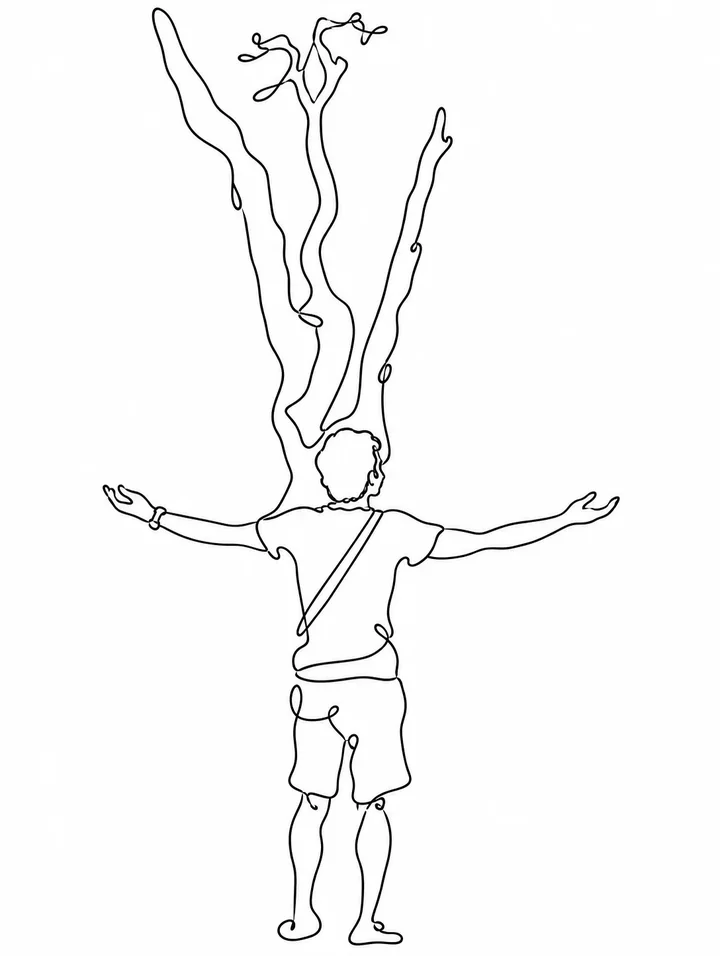
Outstretched arms by a tree
The outstretched arms and tree remain as flowing outlines. The lake, mountains and stone wall are removed.
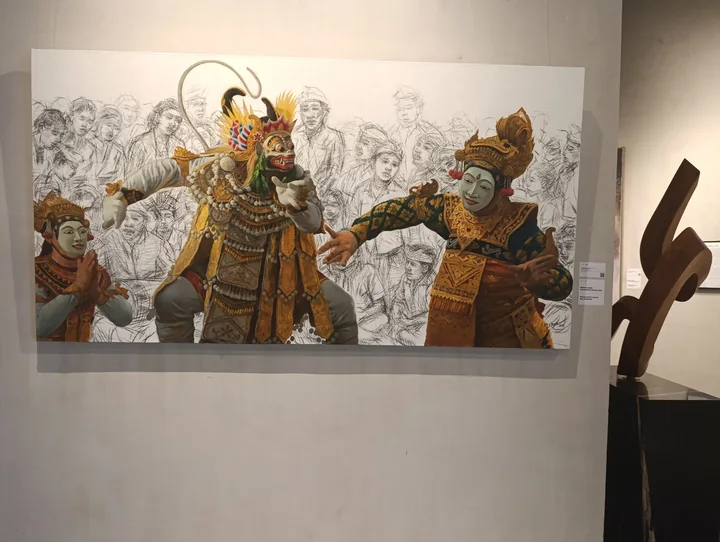
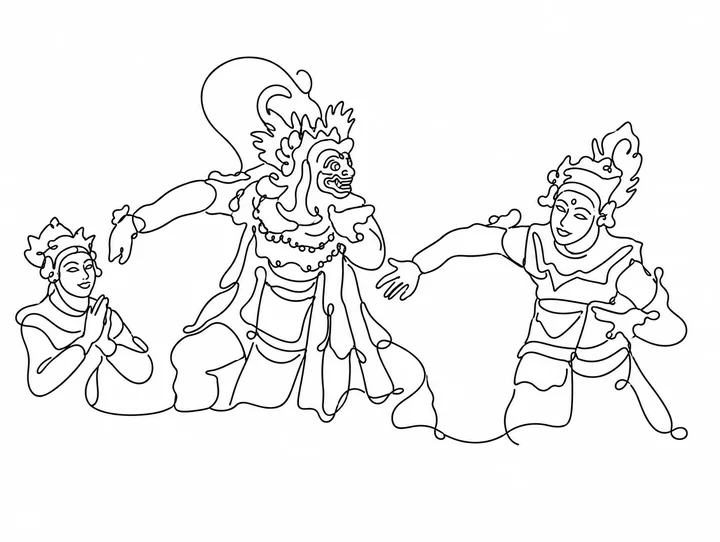
Decorative puppet display
Three decorated figures become a group of open contours, while the frame, wall and foreground display objects disappear.
Ideas for your photos
Try a flower for a minimal card illustration, a clear portrait for a personal keepsake, or a meaningful pose for a small wall print. The hanging-flower example keeps a reaching hand, showing that nearby objects can become part of the design. Crop those elements out before importing if you want only the main subject. Leave enough white space to keep fine contours readable when placing the saved image into another layout.
Choose a photo that works well
Use a clear silhouette, separated limbs and an uncluttered composition. Avoid overlapping faces or objects with nearly identical outlines. Inspect the full image for missing features, extra loops and disconnected marks. Fine lines can look faint at small sizes, so check the exported dimensions and make a small print proof before enlarging. The model may discard scenery entirely, as the mountain example demonstrates.
Make this look in Lineora
Open Lineora on iPhone or Android and select a photo. Choose One Line from the style picker, then generate your image. Compare the result with the original before saving, sharing or exporting a PDF. AI can reinterpret faces, lettering and small details; try a clearer crop if an important feature gets lost.
Which style should you choose?
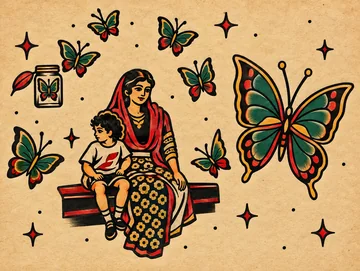
Choose One Line for minimal contours and white space. Pencil retains gray shading and surface texture. Tattoo uses heavier outlines and color. For closed shapes designed to be filled with crayons, choose a coloring-book style; decorative line art may contain open paths and very small gaps.
Turn a Photo into a Coloring Page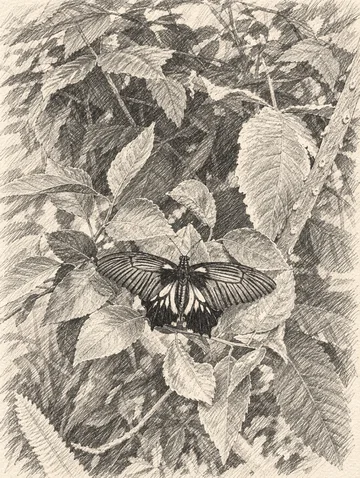
Save, share and print your result
Export a PDF from your gallery and check the paper size in your printer settings. Review the print preview and keep the margins visible. You can combine several finished drawings into one PDF.
Common questions
- Is the result a single connected SVG path for a plotter or laser cutter?
- No. Lineora creates an image with a continuous-line look, not a guaranteed connected vector path. It does not provide SVG tracing, editable nodes or manufacturing-ready files. If you need precise geometry, inspect and redraw the exported artwork in a suitable vector editor.
- Can I create a picture on this website?
- This website shows what Lineora can make. To transform your own photo, use the iOS or Android app. AI generation needs an internet connection.
- Does Lineora need a subscription?
- No. One credit pays for one finished drawing, and purchased credits never expire. At zero credits, you can earn a free drawing by watching a rewarded ad, subject to availability and daily limits.
- Can I print several drawings together?
- Yes. Select drawings in your gallery and export a PDF. For ad-funded drawings, the app can request an additional ad for sharing or PDF export and include a watermark.