Turn a Photo into a Watercolor Painting
Give portraits, pets and travel photos a soft watercolor look with Lineora. Explore a real example, photo tips and ideas for cards, keepsakes and prints.
Create in the Lineora app for iPhone and Android. Download the app, select your photo and choose a style or activity.
What this style does
Watercolor interprets the scene as transparent-looking washes, loose outlines and areas of visible paper. Edges can soften or run together, giving the image a lighter, less photographic finish. This is a digital watercolor effect; the app creates an image rather than paint on paper.
From the same photo
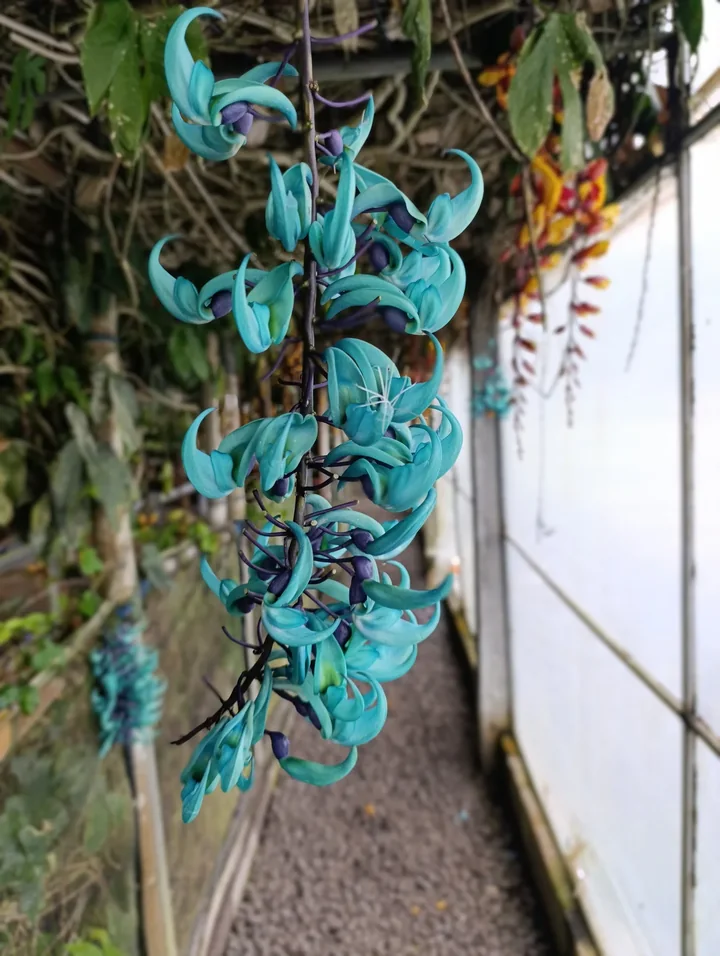
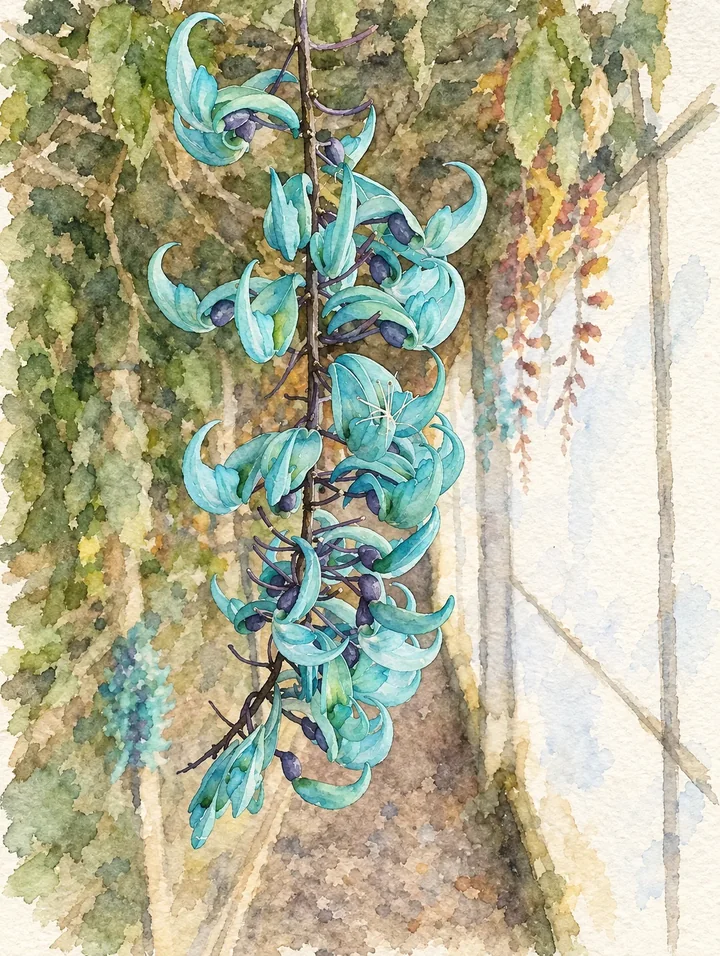
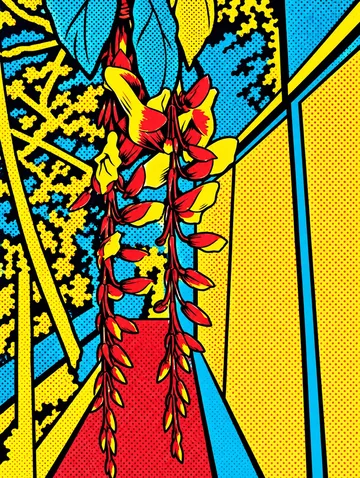
Hanging turquoise flowers
Turquoise petals retain their curved shapes while the surrounding greenery softens into mottled washes.
Rendered with Lineora’s High Quality option. Each generation can vary.
More photo examples
These photos were rendered with Lineora’s High Quality option. Results can vary; open either image for a closer look.
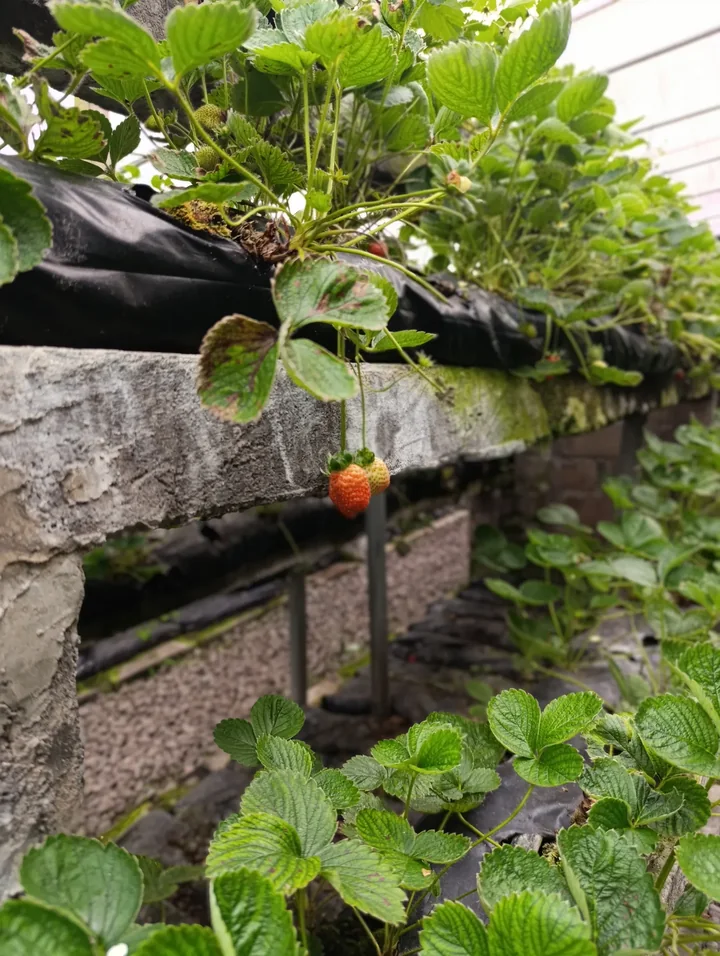
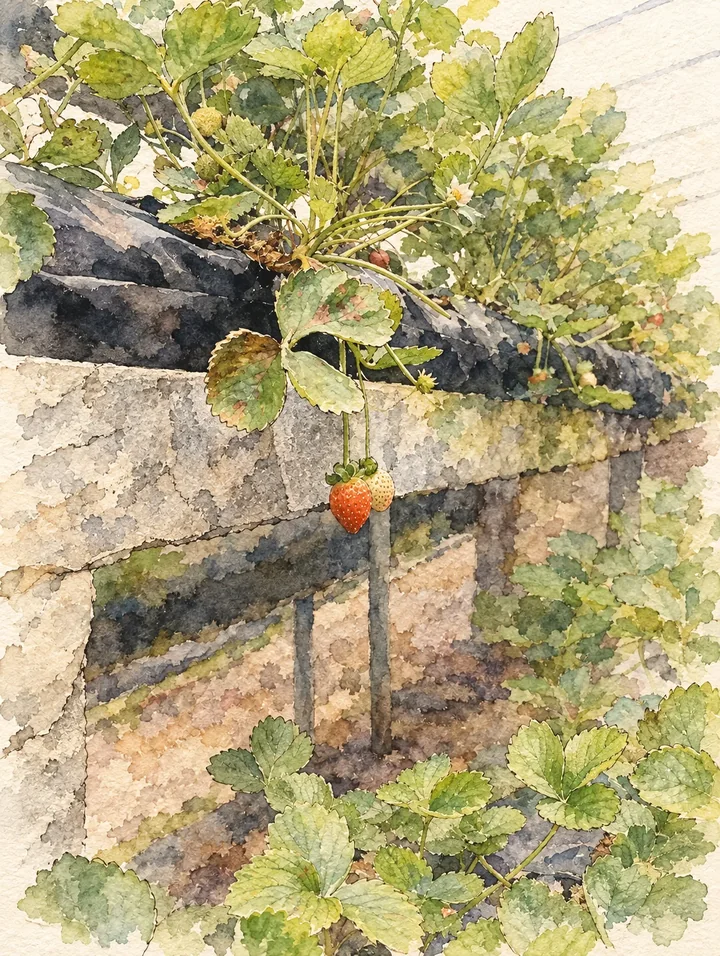
Strawberries in a planter
The orange strawberry remains a focal point against pale green leaves and loosely painted stonework.
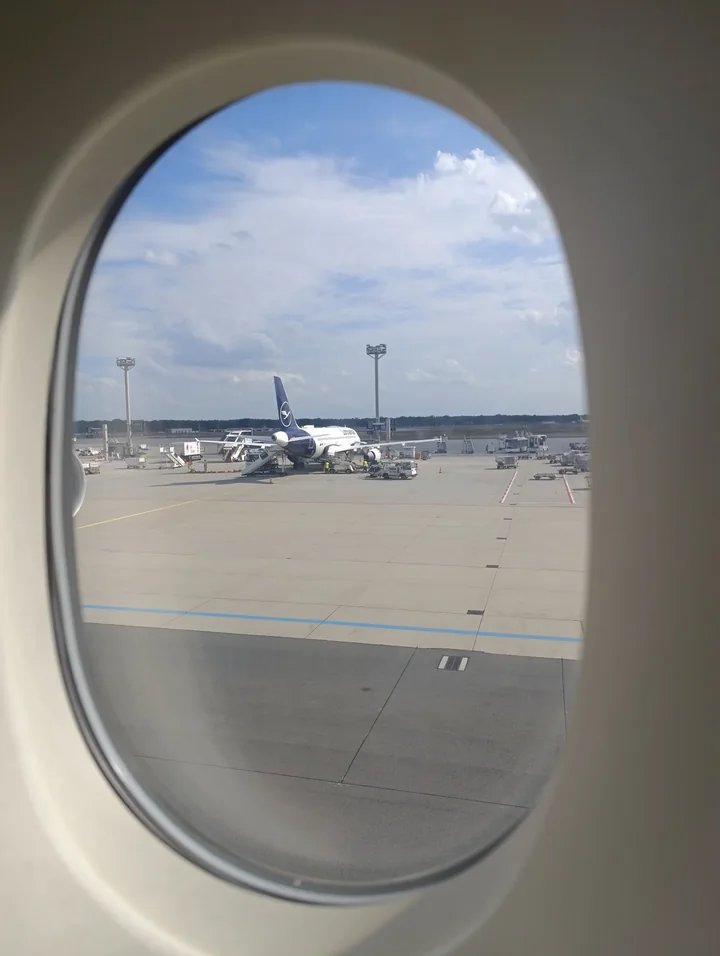
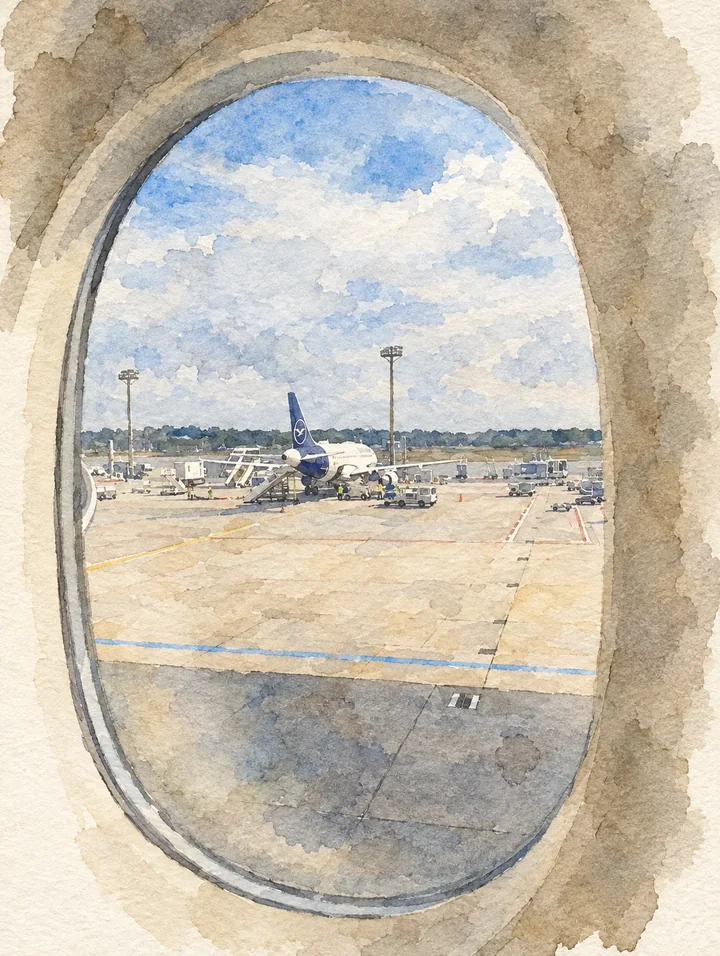
View through an airplane window
The oval window frames soft blue sky and sandy washes; the distant aircraft becomes a small painted detail.
Ideas for your photos
A house photo can become a moving-day keepsake, flowers can inspire a greeting card, and a travel scene can become a page in a personal journal. Leave some clear space around the subject if you intend to place the exported image in a card layout using another editor.
Choose a photo that works well
Use a photo with readable color areas and a clear focal point. Gentle daylight works well as a starting point. Small signs, dense branches and patterned clothing may merge into washes; crop distractions before generating.
Make this look in Lineora
Open Lineora on iPhone or Android and select a photo. Choose Watercolor from the style picker, then generate your image. Compare the result with the original before saving, sharing or exporting a PDF. AI can reinterpret faces, lettering and small details; try a clearer crop if an important feature gets lost.
Which style should you choose?
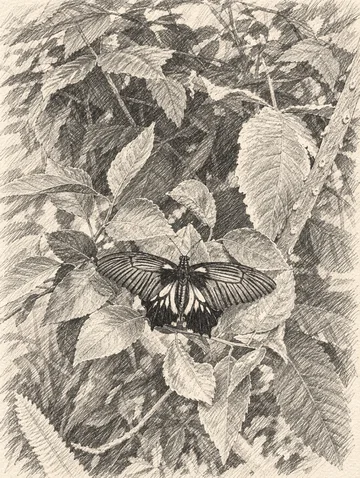
Choose Watercolor for light washes and soft edges. Oil Paint gives a heavier, more textured appearance. Pencil emphasizes gray shading and individual lines.
Turn a Photo into a Coloring Page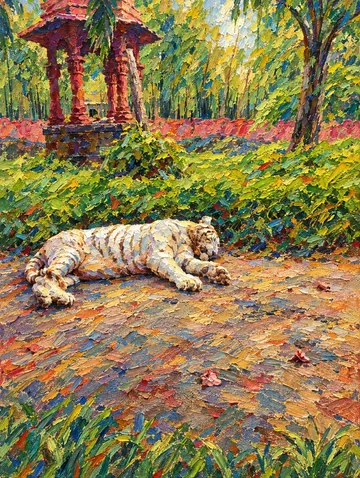
Save, share and print your result
Export a PDF from your gallery and check the paper size in your printer settings. Review the print preview and keep the margins visible. You can combine several finished drawings into one PDF.
Common questions
- Will every detail of my photo stay exactly the same?
- No. The style interprets shapes and color, so small objects, faces and lettering can change. Review the finished image before using it for a keepsake or print.
- Can I create a picture on this website?
- This website shows what Lineora can make. To transform your own photo, use the iOS or Android app. AI generation needs an internet connection.
- Does Lineora need a subscription?
- No. One credit pays for one finished drawing, and purchased credits never expire. At zero credits, you can earn a free drawing by watching a rewarded ad, subject to availability and daily limits.
- Can I print several drawings together?
- Yes. Select drawings in your gallery and export a PDF. For ad-funded drawings, the app can request an additional ad for sharing or PDF export and include a watermark.