Turn a Photo into Sticker Art
Give your photo a bold sticker look with Lineora. See three original/result pairs, learn what the white outline does and prepare artwork for personal projects.
Create in the Lineora app for iPhone and Android. Download the app, select your photo and choose a style or activity.
What this style does
Sticker redraws the main subject with simplified cartoon shapes, saturated color and a thick white outline. A small shadow and glossy highlights suggest a vinyl sticker on a neutral surface. The border is part of the artwork; the generated image may still contain a background.
From the same photo
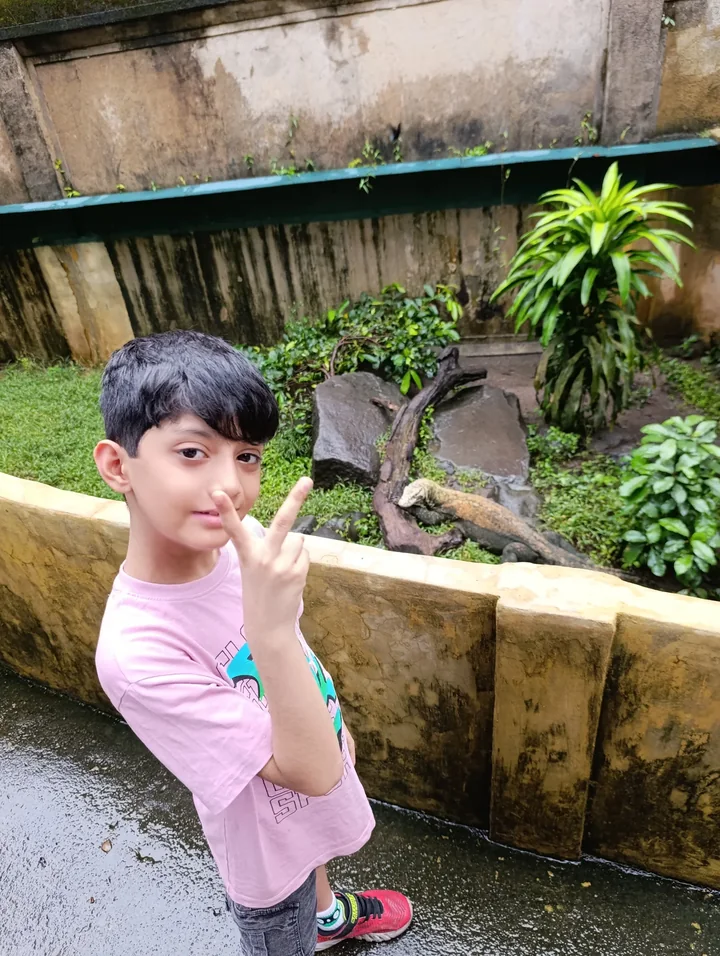
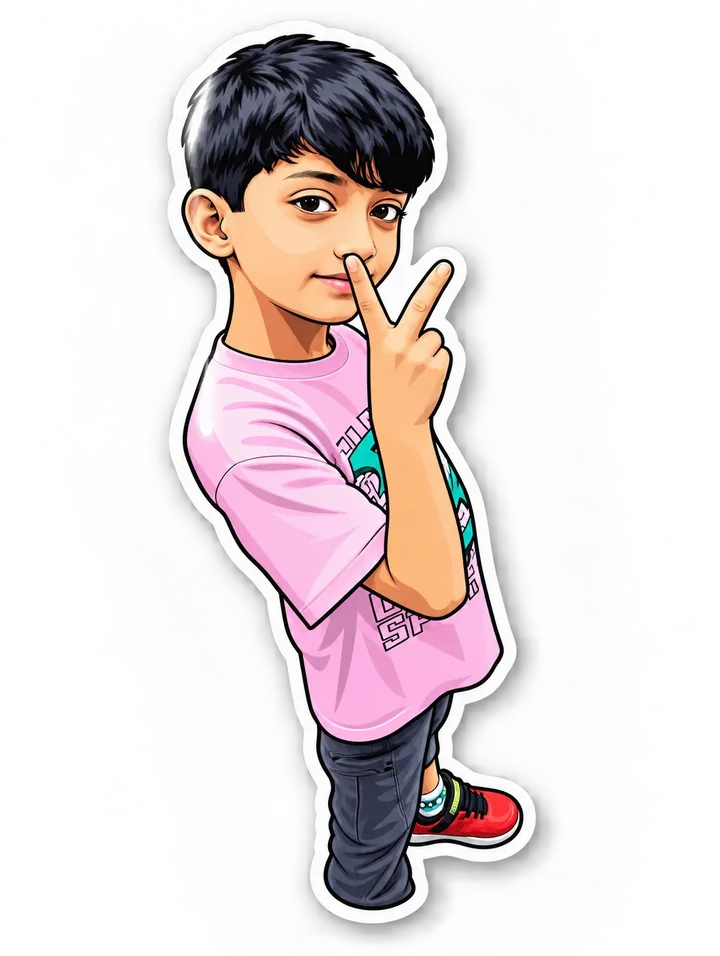
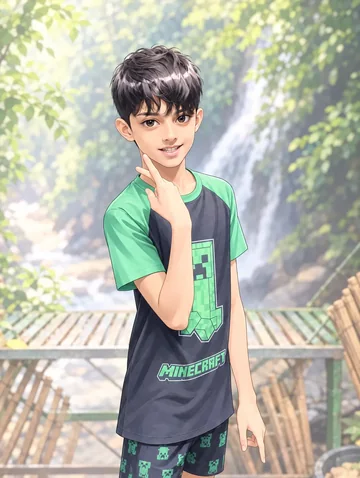
Pink-shirt portrait
The pink shirt and V-shaped hand gesture anchor the cartoon portrait. A white edge separates the subject from the original pond and wall.
Rendered with Lineora’s High Quality option. Each generation can vary.
More photo examples
These photos were rendered with Lineora’s High Quality option. Results can vary; open either image for a closer look.
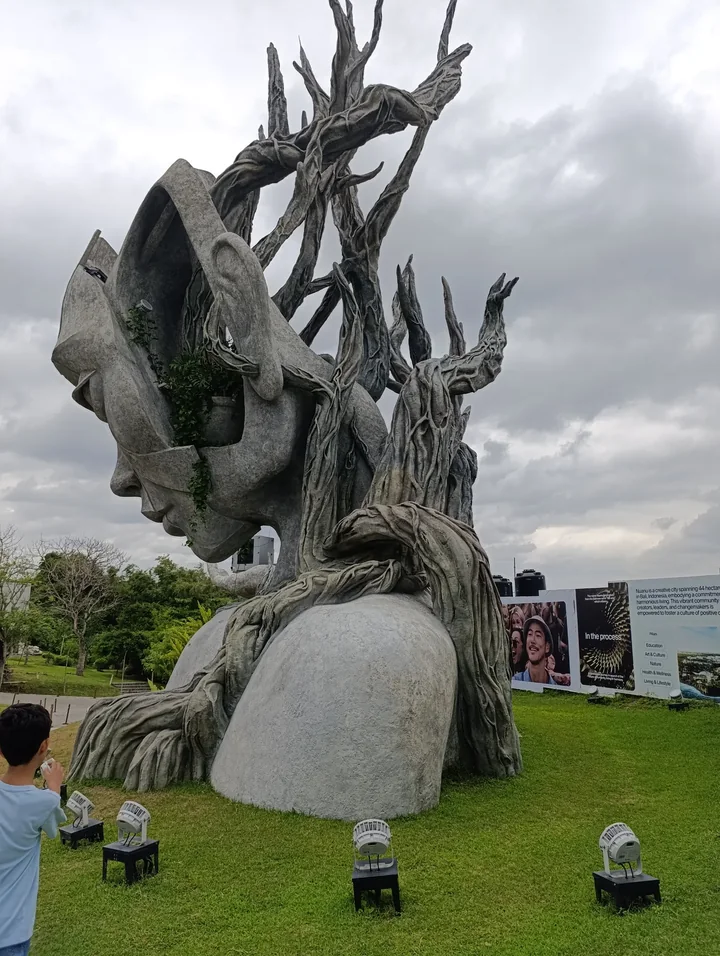
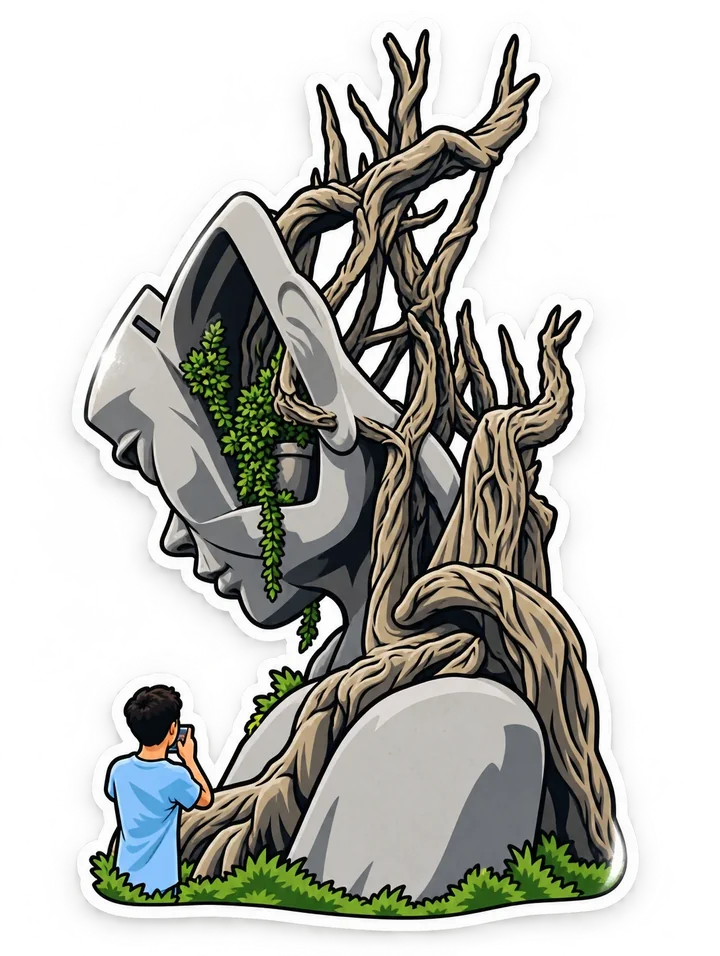
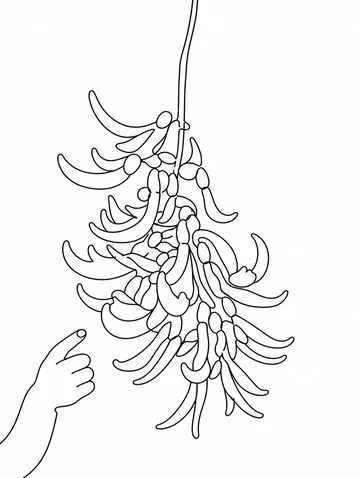
Branch-crowned sculpture
The stone face and branching crown become bold outlined shapes. The foreground visitor remains too; crop first if you want only the sculpture.
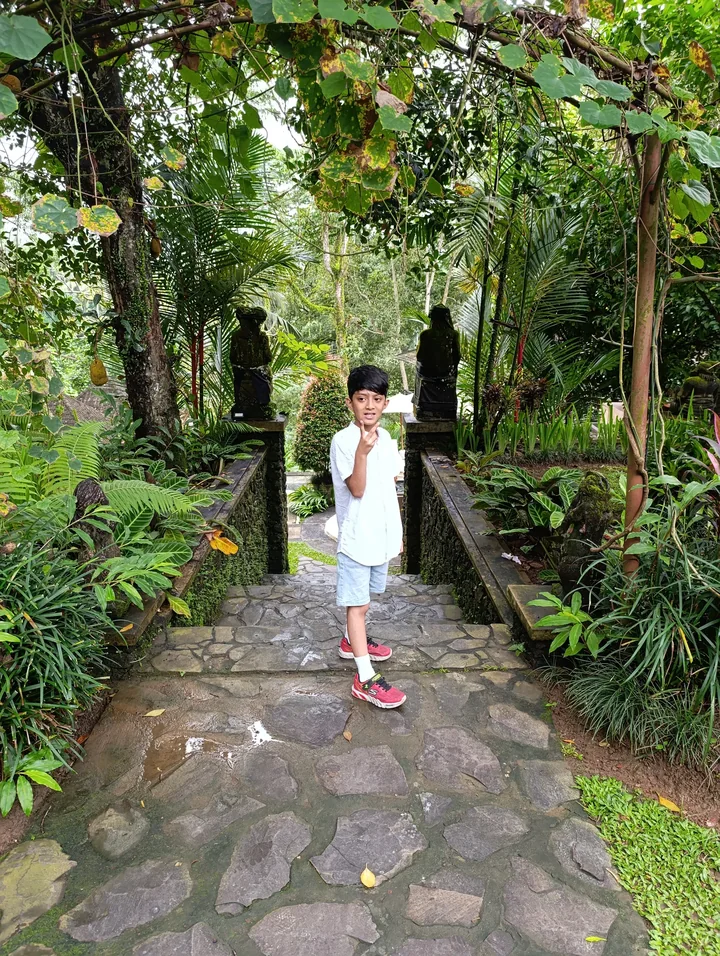

Portrait on a garden path
The white outfit and red shoes remain in a full-body cutout. Removing the leafy arch directs attention to the pose.
Ideas for your photos
Use a distinctive pose for a profile image, a favorite object for a journal decoration, or a portrait for a card layout. Add text or arrange several images in a separate editor after saving.
Choose a photo that works well
Choose a clear silhouette with space around it. Thin branches, tiny accessories and overlapping subjects can merge. Inspect the edges and background before placing the image in another design.
Make this look in Lineora
Open Lineora on iPhone or Android and select a photo. Choose Sticker from the style picker, then generate your image. Compare the result with the original before saving, sharing or exporting a PDF. AI can reinterpret faces, lettering and small details; try a clearer crop if an important feature gets lost.
Which style should you choose?
Choose Sticker for a white outlined subject, Chibi for tiny character proportions, or Pop Art for a colorful graphic scene.
Turn a Photo into a Coloring Page
Save, share and print your result
Export a PDF from your gallery and check the paper size in your printer settings. Review the print preview and keep the margins visible. You can combine several finished drawings into one PDF.
Common questions
- Does this create a ready-to-import WhatsApp or LINE sticker pack?
- No. It creates a sticker-style image. Transparent backgrounds, cut paths and messaging-app packs are not guaranteed or exported by this style; prepare those separately in a suitable editor.
- Can I create a picture on this website?
- This website shows what Lineora can make. To transform your own photo, use the iOS or Android app. AI generation needs an internet connection.
- Does Lineora need a subscription?
- No. One credit pays for one finished drawing, and purchased credits never expire. At zero credits, you can earn a free drawing by watching a rewarded ad, subject to availability and daily limits.
- Can I print several drawings together?
- Yes. Select drawings in your gallery and export a PDF. For ad-funded drawings, the app can request an additional ad for sharing or PDF export and include a watermark.