Turn a Photo into a Pencil Sketch
Create a graphite-style drawing from your photo in Lineora. See a real pencil sketch example, choose a suitable portrait and learn how to save or print it.
Create in the Lineora app for iPhone and Android. Download the app, select your photo and choose a style or activity.
What this style does
Pencil turns color into graphite-like marks, hatching and shades of gray on a paper-like background. Dark areas become layers of strokes; lighter areas leave more of the paper visible. The result is a finished shaded drawing, with a different purpose from an empty coloring outline.
From the same photo
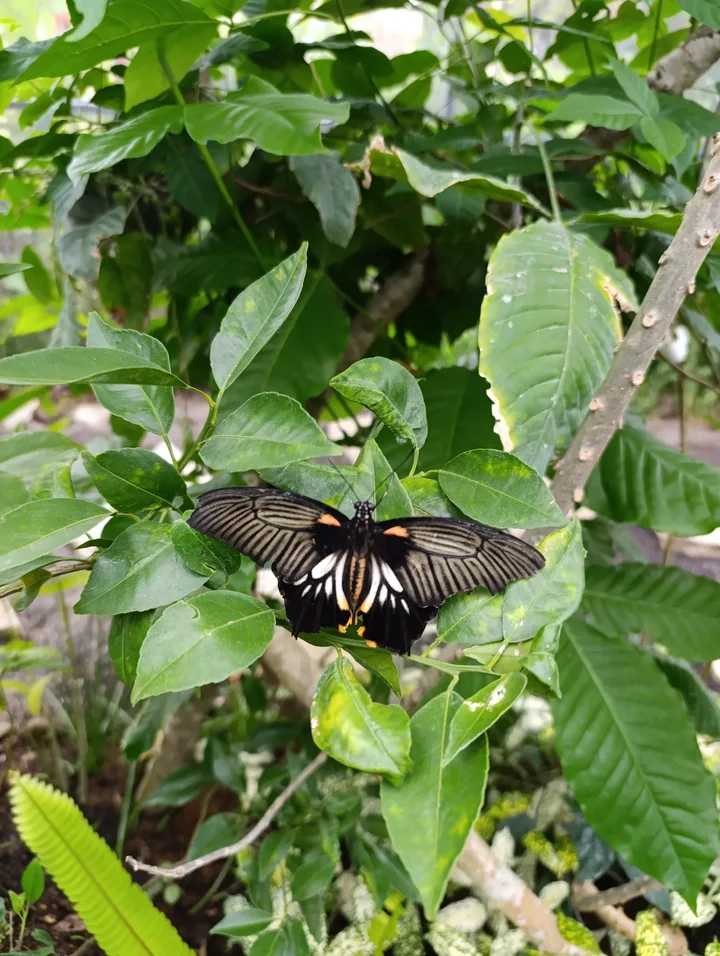
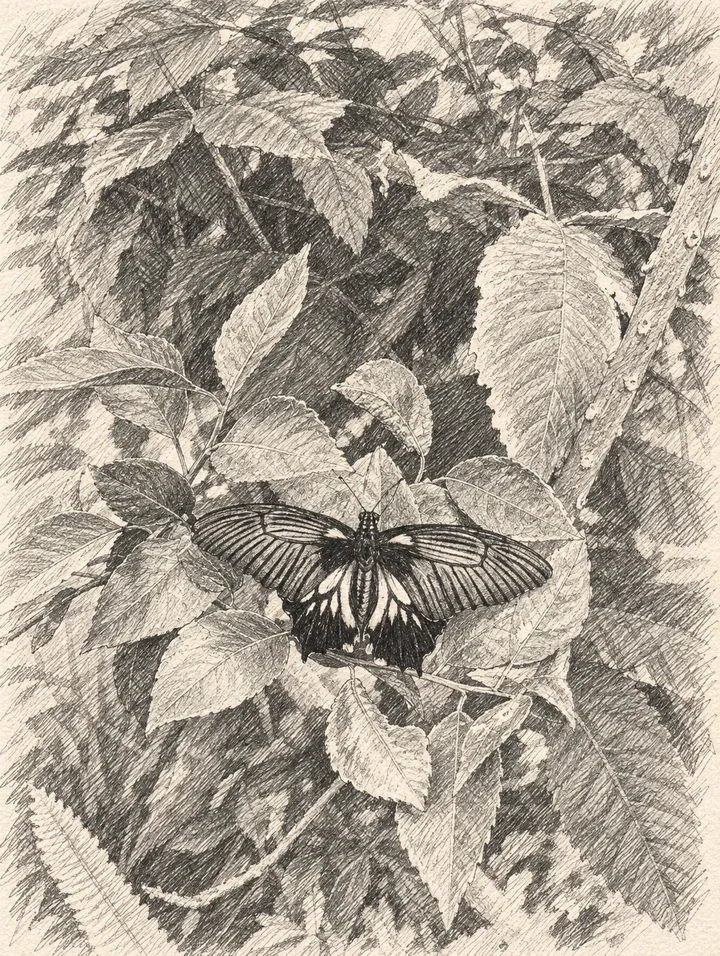
Butterfly among leaves
Wing markings stay distinct among shaded leaves; layers of hatching replace the busy green background.
Rendered with Lineora’s High Quality option. Each generation can vary.
More photo examples
These photos were rendered with Lineora’s High Quality option. Results can vary; open either image for a closer look.
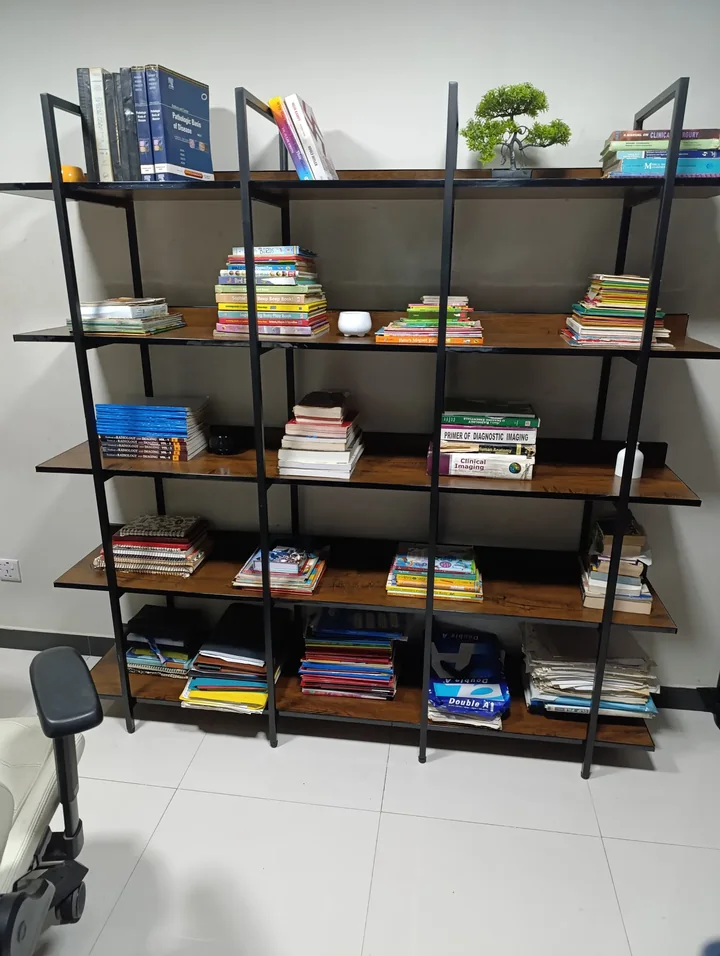
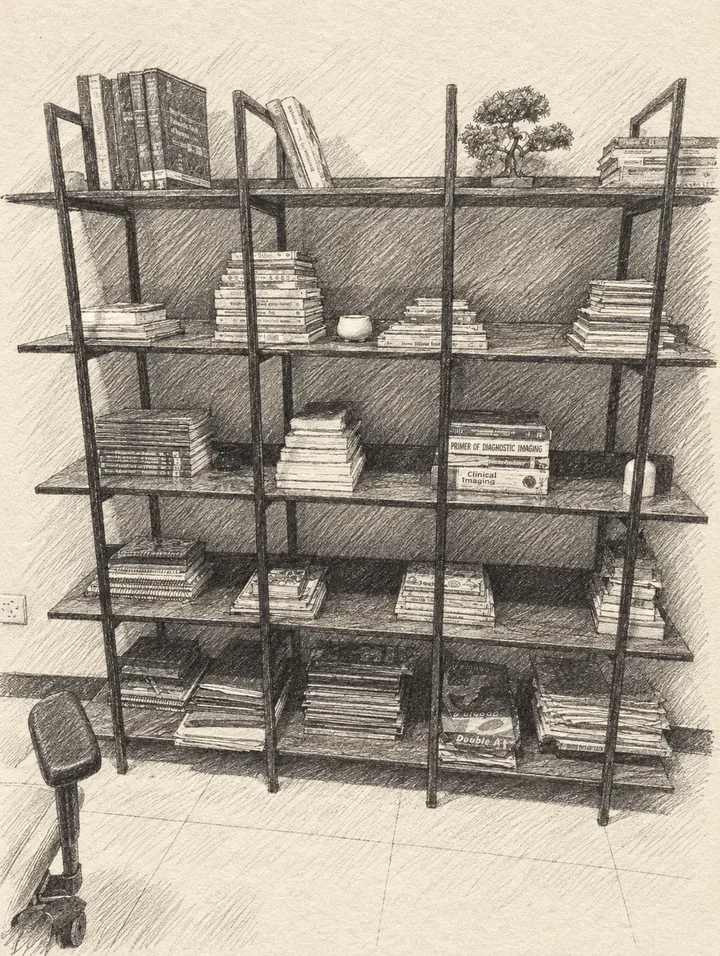
Books and a small tree
Book spines and shelf edges become firm pencil lines, while the floor softens into light shading.
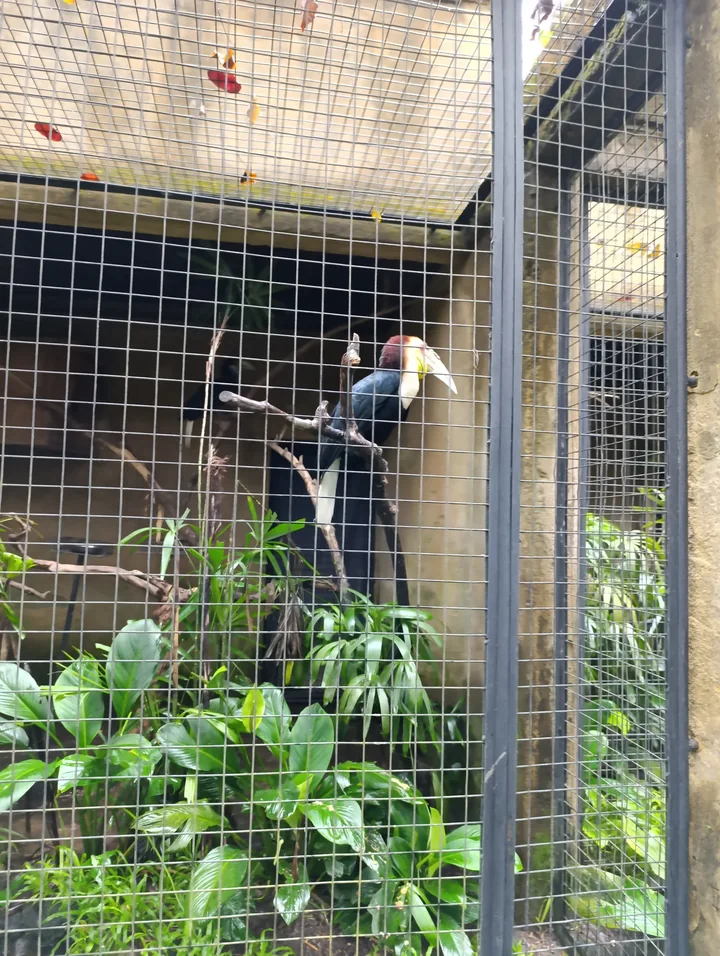
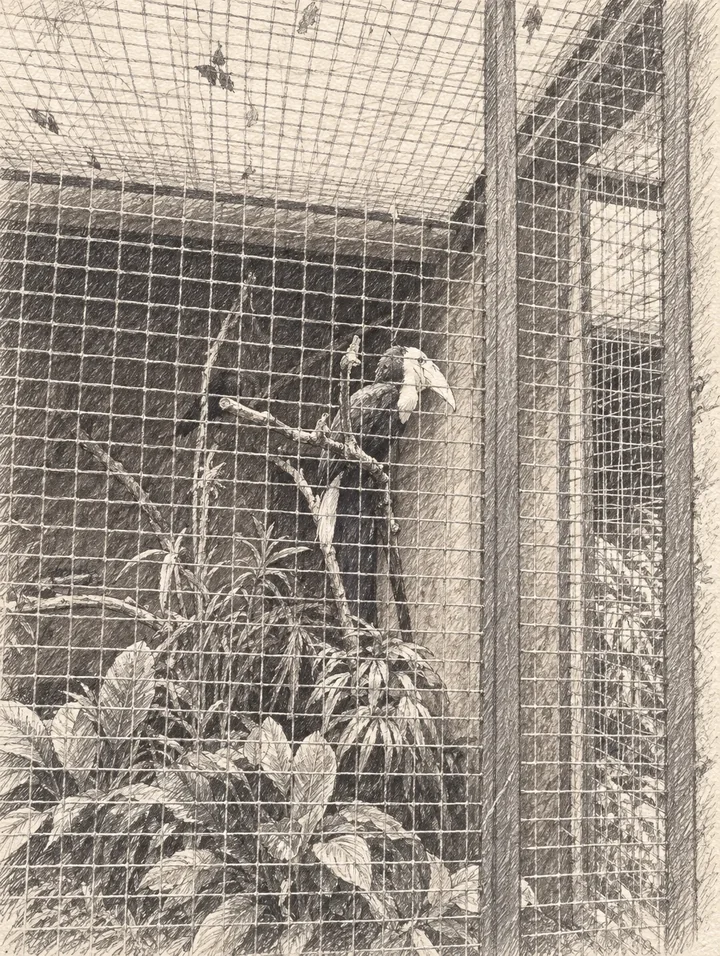
Hornbill behind mesh
The mesh remains across the bird and foliage; dense hatching shows why a clearer background can help.
Ideas for your photos
Try a close pet portrait for fur texture, a family photo for a keepsake, or a building with a distinct silhouette for a travel journal. Start with one important subject so its expression or shape remains easy to read. These are ideas to try with your own photos, not additional examples shown here.
Choose a photo that works well
Choose soft side lighting that separates the face from the background without hiding the eyes. Crop away clutter before importing. Very dark hair and shadows can merge, while an overexposed face gives the drawing little detail to interpret.
Make this look in Lineora
Open Lineora on iPhone or Android and select a photo. Choose Pencil from the style picker, then generate your image. Compare the result with the original before saving, sharing or exporting a PDF. AI can reinterpret faces, lettering and small details; try a clearer crop if an important feature gets lost.
Which style should you choose?
Choose Pencil for a monochrome keepsake with shading. Choose Watercolor for soft color, or a coloring-page style when you want open areas to fill yourself.
Turn a Photo into a Coloring Page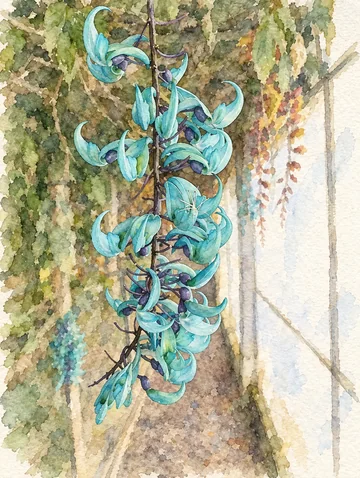
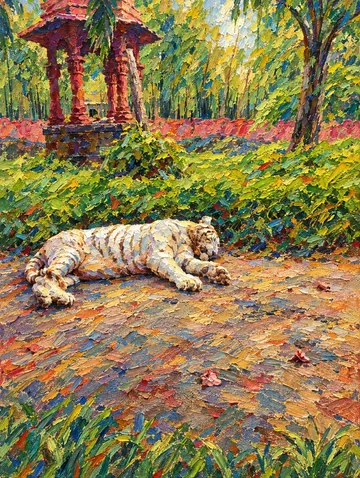
Save, share and print your result
Export a PDF from your gallery and check the paper size in your printer settings. Review the print preview and keep the margins visible. You can combine several finished drawings into one PDF.
Common questions
- Is a pencil sketch the same as a coloring page?
- No. Pencil includes shading and texture that already fill parts of the picture. For an activity to color on paper, use a coloring-book style instead.
- Can I create a picture on this website?
- This website shows what Lineora can make. To transform your own photo, use the iOS or Android app. AI generation needs an internet connection.
- Does Lineora need a subscription?
- No. One credit pays for one finished drawing, and purchased credits never expire. At zero credits, you can earn a free drawing by watching a rewarded ad, subject to availability and daily limits.
- Can I print several drawings together?
- Yes. Select drawings in your gallery and export a PDF. For ad-funded drawings, the app can request an additional ad for sharing or PDF export and include a watermark.