Turn a Photo into an Oil Painting
Create an oil-painting-style image from your photo in Lineora. See the textured example, learn which photos work well and prepare your result for sharing or print.
Create in the Lineora app for iPhone and Android. Download the app, select your photo and choose a style or activity.
What this style does
Oil Paint gives the image the appearance of thick impasto strokes, rich color and canvas texture. Broad marks replace fine photographic detail, and highlights can look like raised paint. The texture is part of the digital image, not a physical layer of paint.
From the same photo
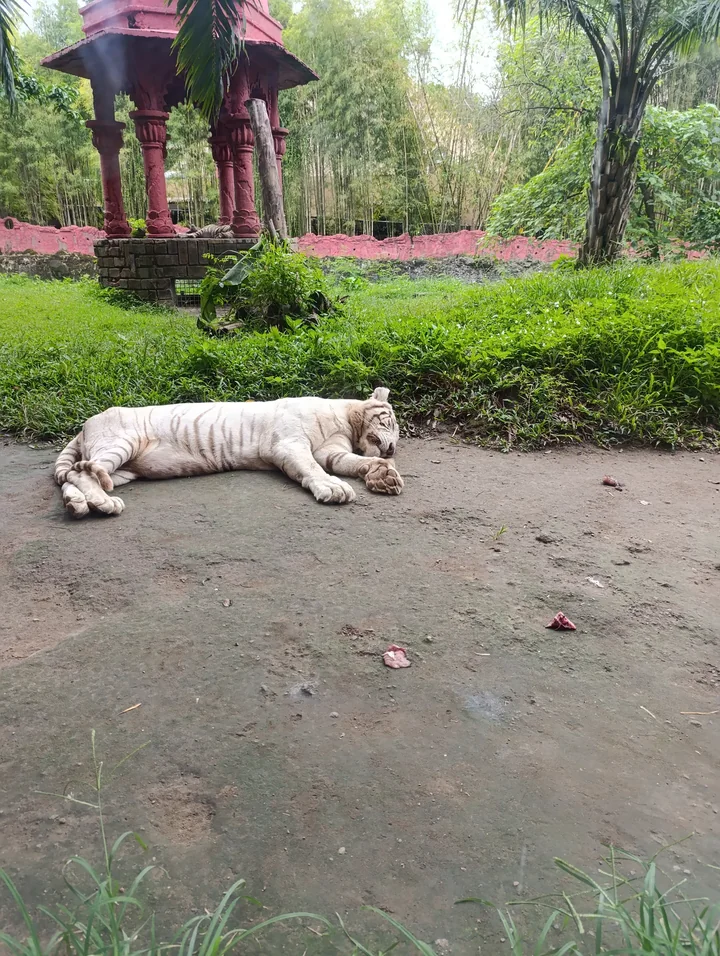
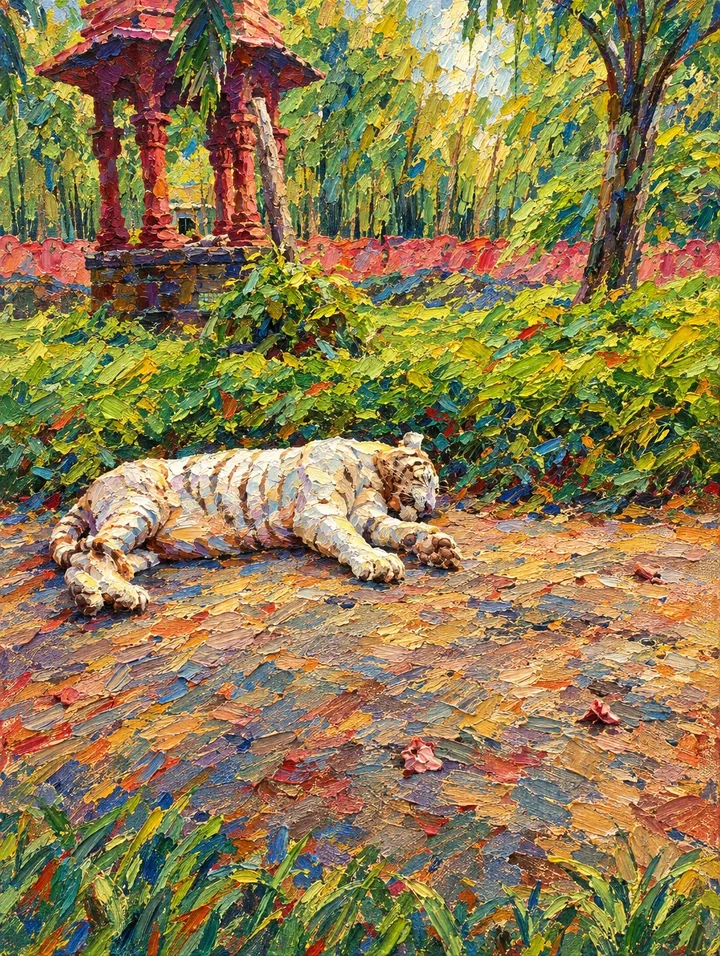
White tiger resting
Short cream strokes describe the tiger’s fur, while colorful dabs turn the gray path into a richly textured surface.
Rendered with Lineora’s High Quality option. Each generation can vary.
More photo examples
These photos were rendered with Lineora’s High Quality option. Results can vary; open either image for a closer look.

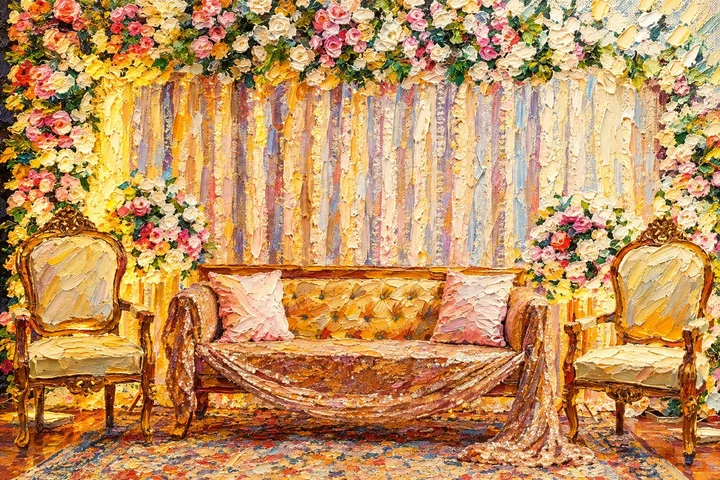
Gold sofa beneath flowers
Gold furniture and curtains gain warm layered strokes; the floral canopy becomes dense flecks of pink, green and white.
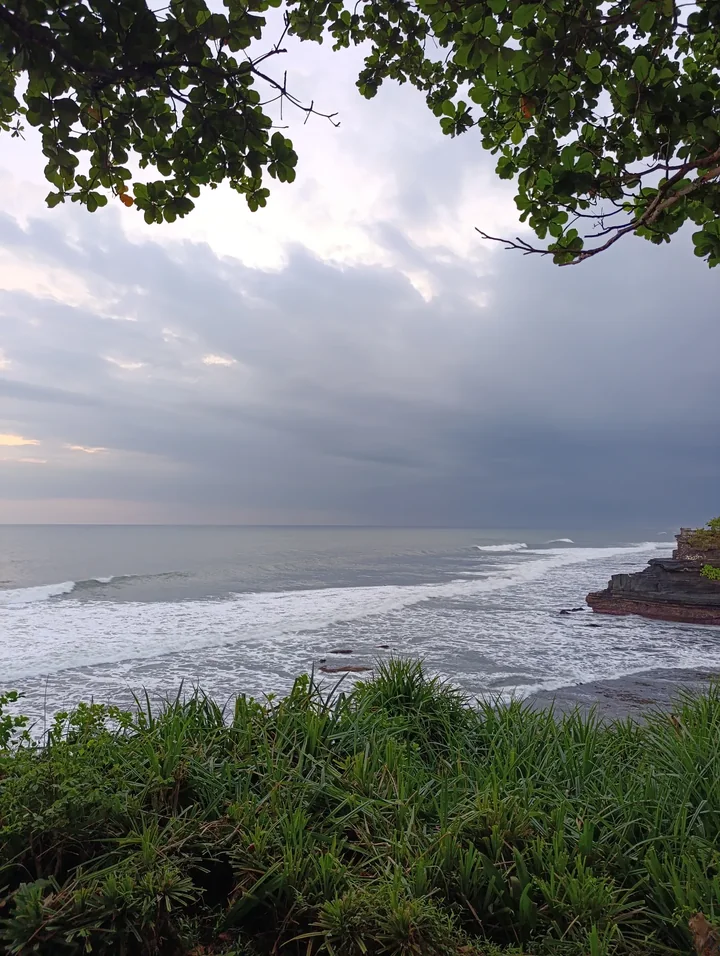
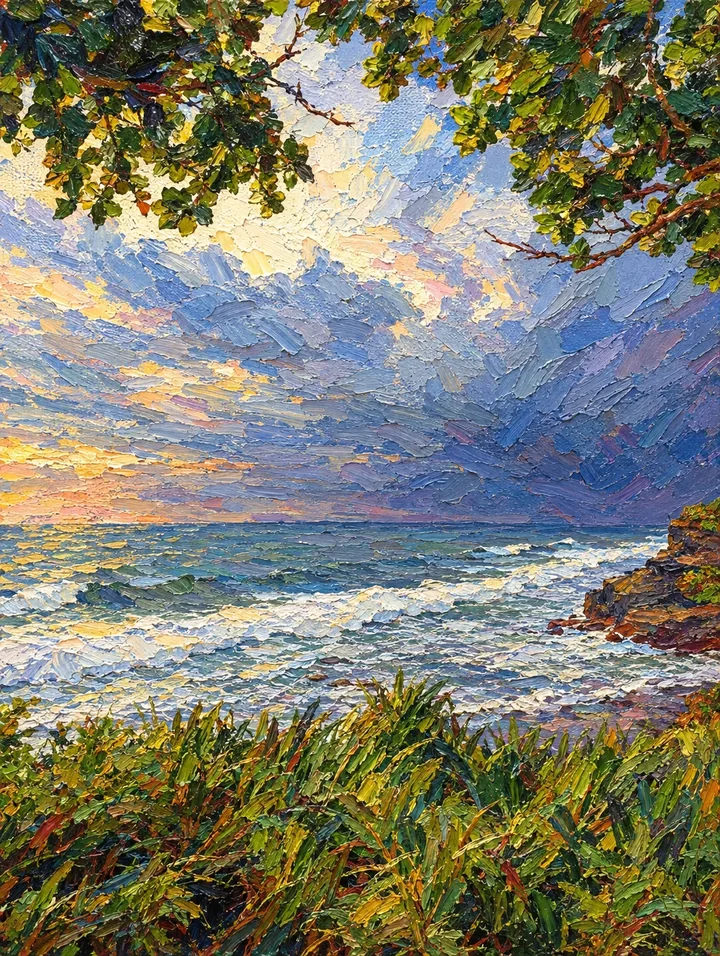
Waves under a cloudy sky
Broad blue and golden strokes reshape the sky and surf; textured grass gives the coast a warmer, more dramatic mood.
Ideas for your photos
Try a family portrait for a personal wall print, a pet photo as a keepsake, or a landscape with strong light and shadow. A clear composition gives the larger brush marks room to describe the subject without competing with too many small objects.
Choose a photo that works well
Pick a well-lit image with visible midtones. Deep shadows may become dense paint-like areas, while tiny faces lose definition. Before ordering a large print from a separate printer, check the exported dimensions and make a small proof.
Make this look in Lineora
Open Lineora on iPhone or Android and select a photo. Choose Oil Paint from the style picker, then generate your image. Compare the result with the original before saving, sharing or exporting a PDF. AI can reinterpret faces, lettering and small details; try a clearer crop if an important feature gets lost.
Which style should you choose?
Choose Oil Paint for rich color and a heavy brushwork effect. Watercolor is lighter and more transparent-looking; Pencil works when you want a monochrome drawing.
Turn a Photo into a Coloring Page
Save, share and print your result
Export a PDF from your gallery and check the paper size in your printer settings. Review the print preview and keep the margins visible. You can combine several finished drawings into one PDF.
Common questions
- Will Lineora send me a painted canvas?
- No. Lineora creates a digital image you can save or print. Physical canvas printing, framing and hand painting are not included; any printing service is arranged separately.
- Can I create a picture on this website?
- This website shows what Lineora can make. To transform your own photo, use the iOS or Android app. AI generation needs an internet connection.
- Does Lineora need a subscription?
- No. One credit pays for one finished drawing, and purchased credits never expire. At zero credits, you can earn a free drawing by watching a rewarded ad, subject to availability and daily limits.
- Can I print several drawings together?
- Yes. Select drawings in your gallery and export a PDF. For ad-funded drawings, the app can request an additional ad for sharing or PDF export and include a watermark.