Turn a Photo into a Chibi Character
Create a cute chibi character from your photo in Lineora. Compare three real examples, learn about the proportions and choose a photo for your avatar.
Create in the Lineora app for iPhone and Android. Download the app, select your photo and choose a style or activity.
What this style does
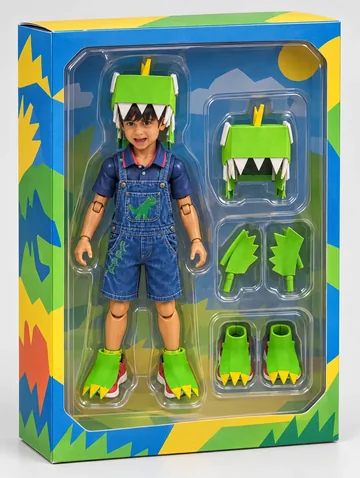
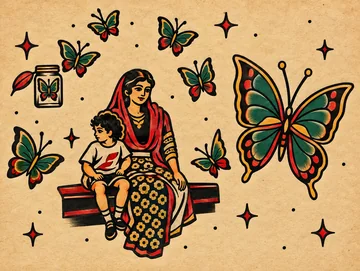
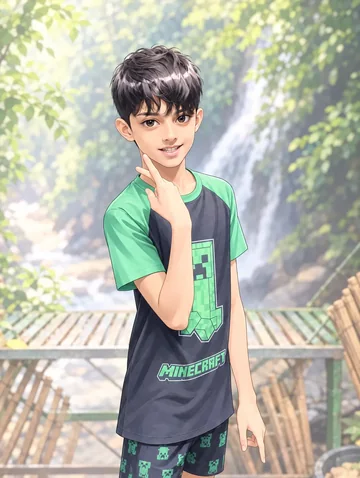
Chibi exaggerates the head and eyes while shrinking the body and limbs. Rounded outlines and bright cel shading turn a recognizable pose into a small, expressive character. Hair, clothing and color help connect the illustration to the photo, although facial details can change.
From the same photo
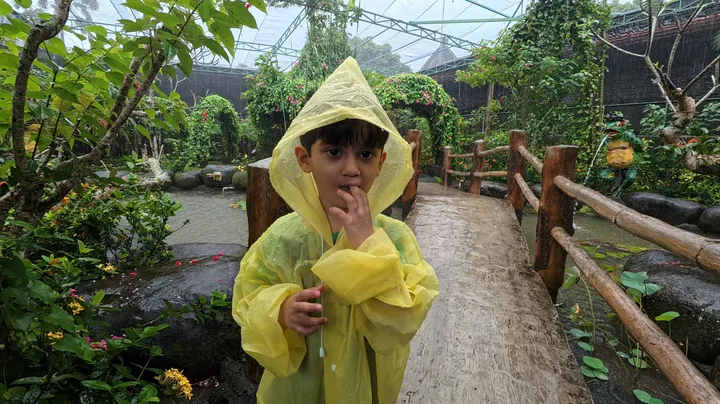

Yellow raincoat portrait
The yellow hood frames enlarged eyes and a much larger head. Bright leaf shapes surround the familiar hand-to-mouth pose.
Rendered with Lineora’s High Quality option. Each generation can vary.
More photo examples
These photos were rendered with Lineora’s High Quality option. Results can vary; open either image for a closer look.
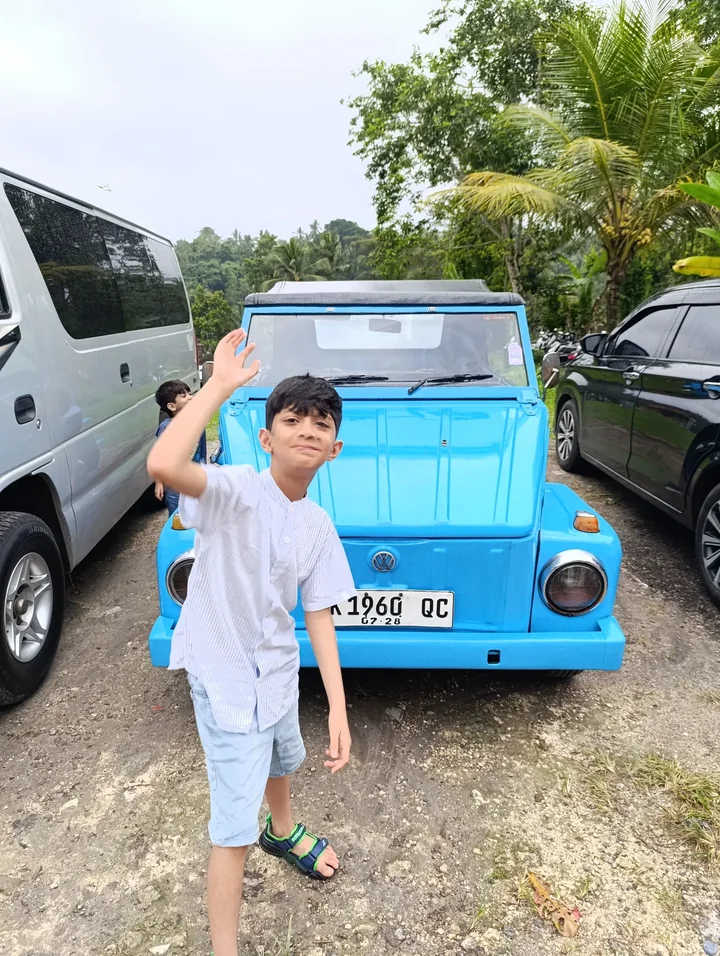
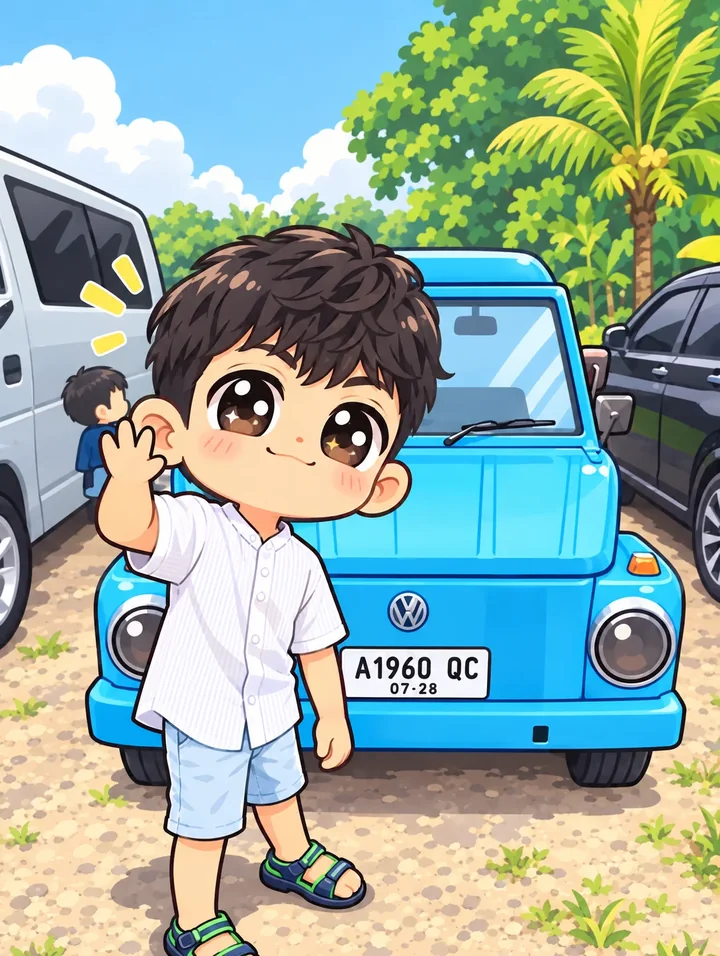
Waving beside a blue car
The wave and blue car remain recognizable as the body becomes smaller. Check small details such as lettering before using the result.
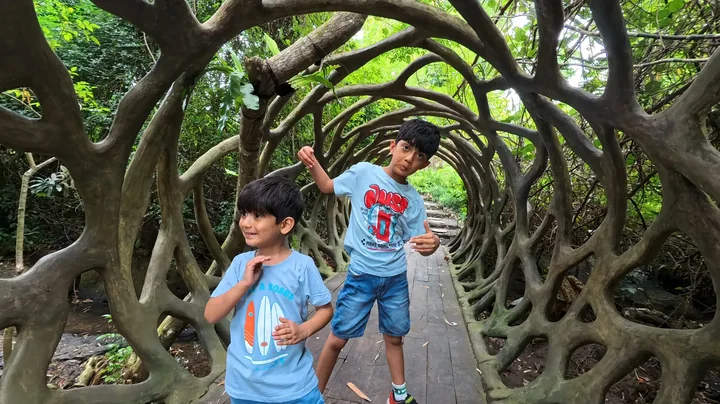
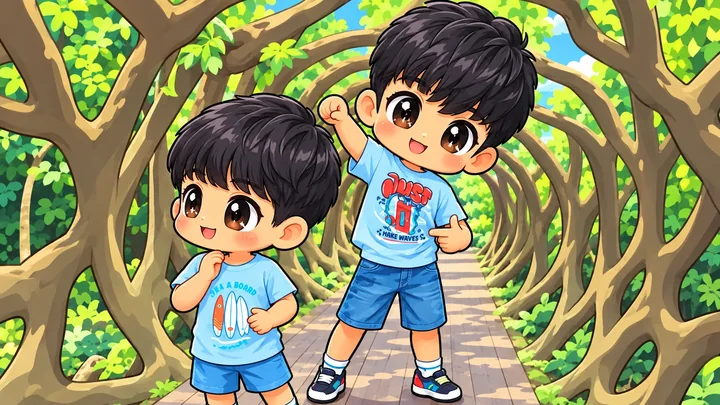
Two children under a tree arch
Both children become large-eyed characters with smaller bodies. The branching arch still frames their different poses.
Ideas for your photos
Try a close portrait for an avatar, a full-body outfit photo for a character card, or two people for a shared keepsake. Leave room around the head when cropping for a circular profile image.
Choose a photo that works well
Choose visible eyes and a clear pose. Separate people from one another; overlapping hands and distant faces are harder to interpret. Review both faces in a group result.
Make this look in Lineora
Open Lineora on iPhone or Android and select a photo. Choose Chibi from the style picker, then generate your image. Compare the result with the original before saving, sharing or exporting a PDF. AI can reinterpret faces, lettering and small details; try a clearer crop if an important feature gets lost.
Which style should you choose?
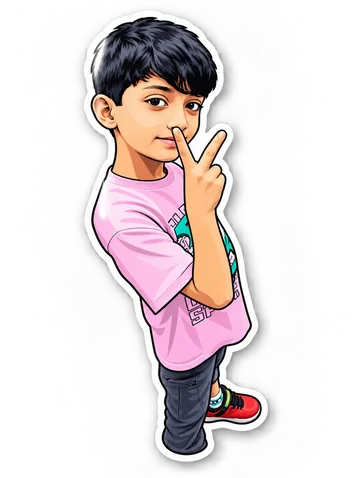
Choose Chibi for exaggerated proportions, Anime for a fuller illustrated scene, or Sticker for a bold outlined cutout look.
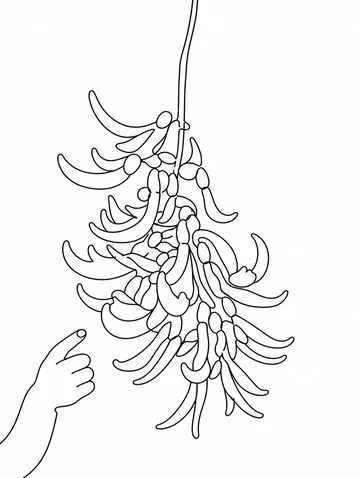
Turn a Photo into a Coloring Page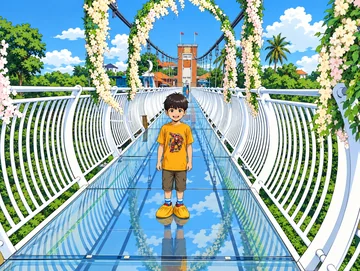
Save, share and print your result
Export a PDF from your gallery and check the paper size in your printer settings. Review the print preview and keep the margins visible. You can combine several finished drawings into one PDF.
Common questions
- Is Chibi the same as Anime?
- Chibi is a stylized character treatment with a large head and small body. Lineora’s Anime style uses less exaggerated proportions. Both create still images, not animations.
- Can I create a picture on this website?
- This website shows what Lineora can make. To transform your own photo, use the iOS or Android app. AI generation needs an internet connection.
- Does Lineora need a subscription?
- No. One credit pays for one finished drawing, and purchased credits never expire. At zero credits, you can earn a free drawing by watching a rewarded ad, subject to availability and daily limits.
- Can I print several drawings together?
- Yes. Select drawings in your gallery and export a PDF. For ad-funded drawings, the app can request an additional ad for sharing or PDF export and include a watermark.