Stained-Glass Coloring Pages from Photos
Print free stained-glass coloring pages or create pane-style outlines from your photo in Lineora. See three examples and download A4 or US Letter PDFs.
Free printable coloring pages
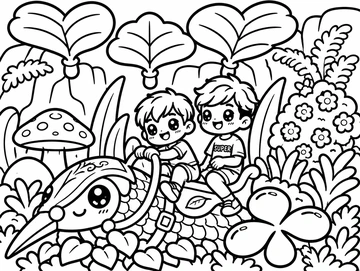
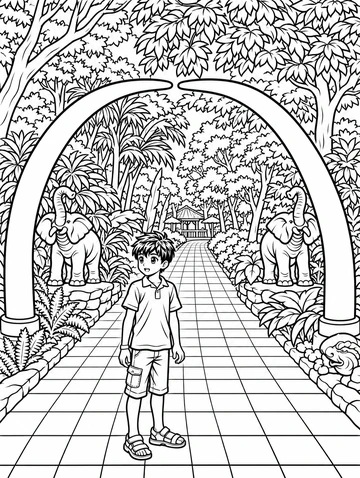
Download all three sample pages as a PDF, or choose an individual page below. No account or app install is needed for these samples.
Print at actual size or choose Fit to printable area. For a coloring page based on your own photo, choose this style in the Lineora app. App generation uses your available drawings or credits.
Create in the Lineora app for iPhone and Android. Download the app, select your photo and choose a style or activity.
What this style does
Thick black lines divide the subject and background into enclosed panes inspired by stained-glass windows. The result stays black and white so you can choose the colors. It is a digital coloring design, not a finished glass object.
From the same photo
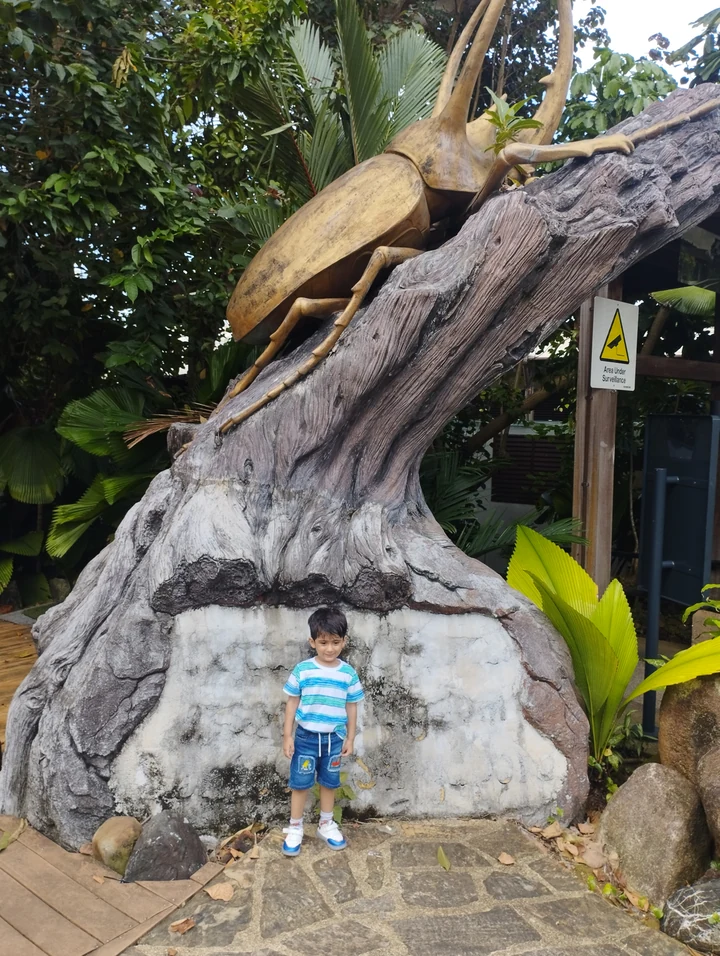
Drag to reveal
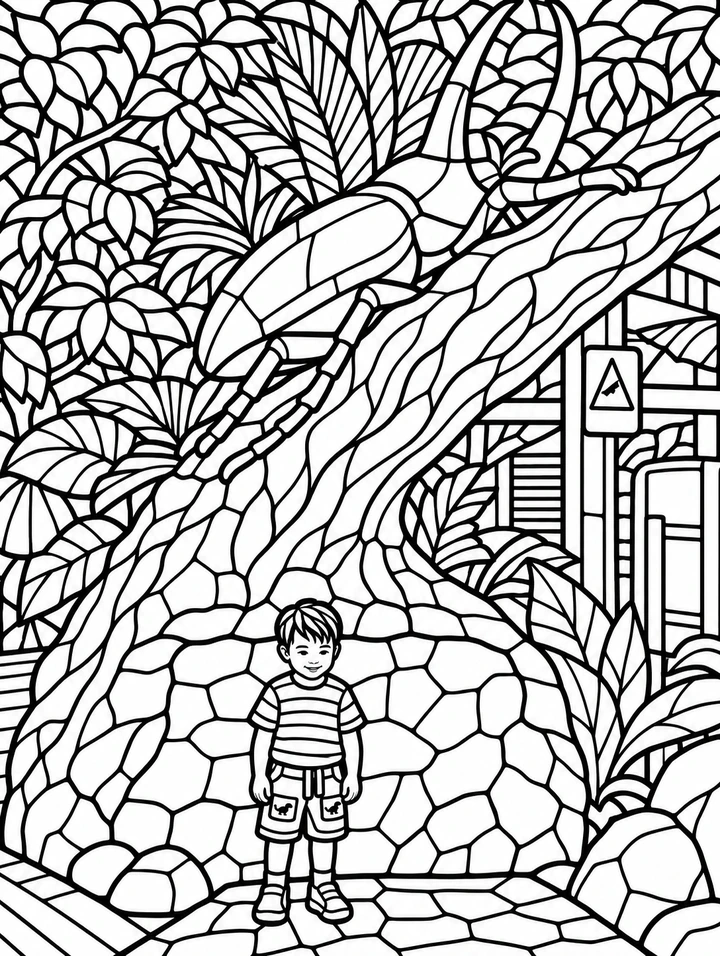
Child below a giant beetle sculpture
Thick lines divide the beetle, sloping log and leaves into enclosed segments. The child remains recognizable beneath the sculpture.
AI-generated illustration using this style’s prompt. This is a style preview, not an in-app capture; your result may differ.
Print this coloring page
More photo examples
These illustrated examples show how the style can reinterpret different photos. Compare the original and the preview to see changes in poses, faces and backgrounds.
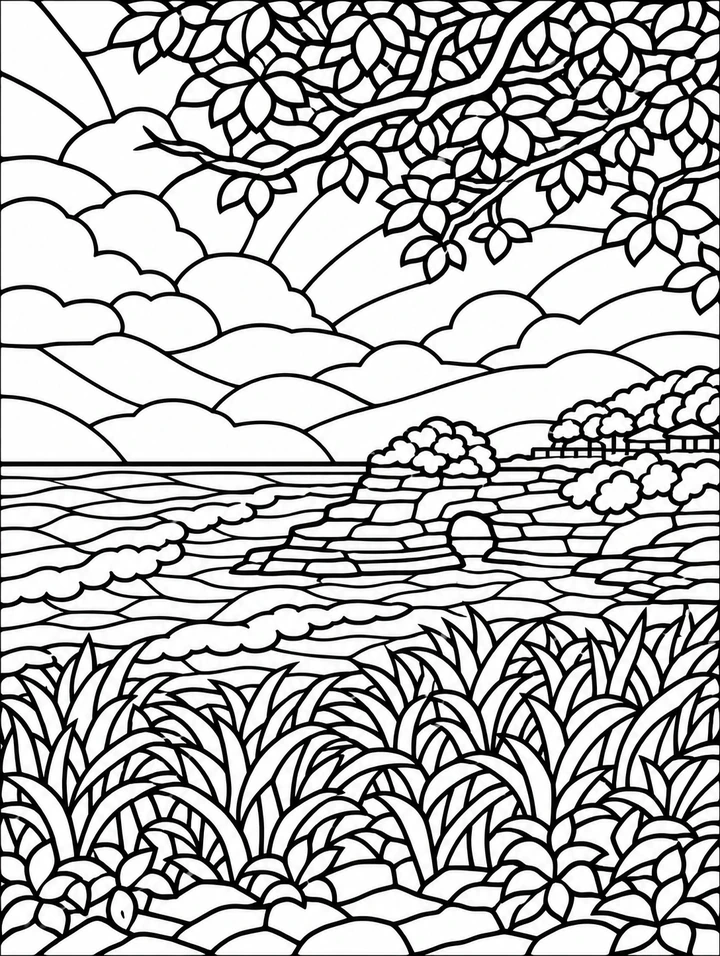
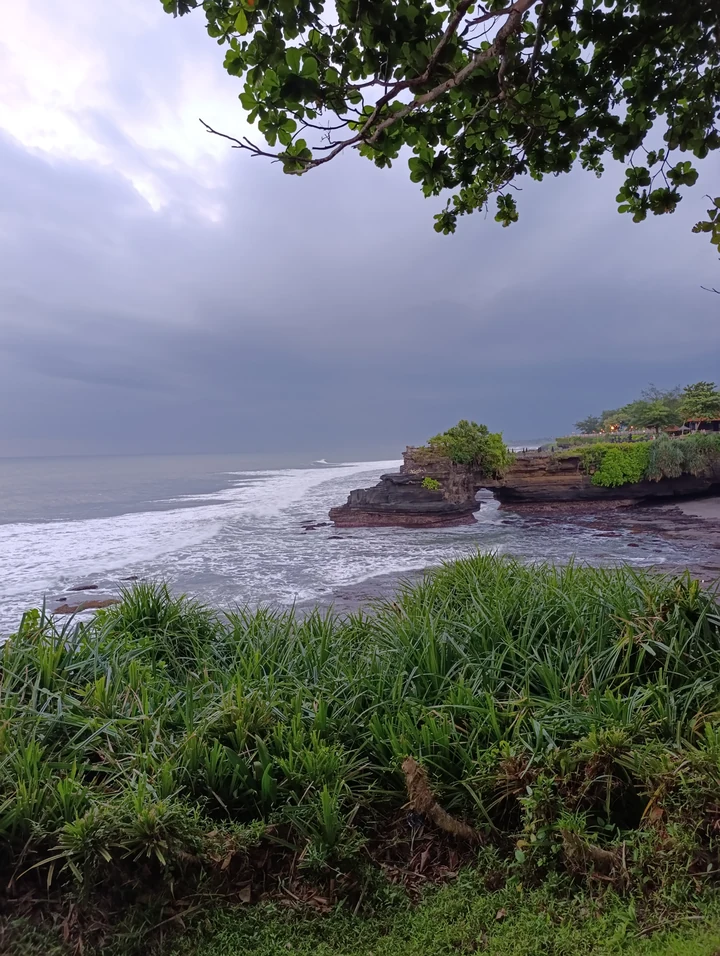
Drag to reveal
Rocky coast beneath branches
Clouds, waves and layered rocks become interlocking outlined shapes. Smaller leaf and grass segments make the foreground more detailed.
Print this coloring page
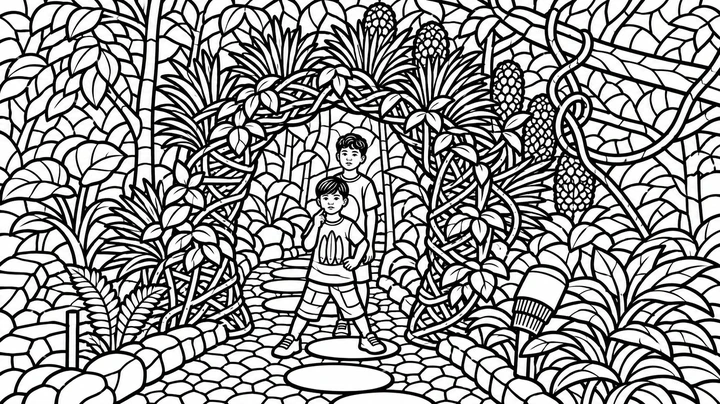
Drag to reveal
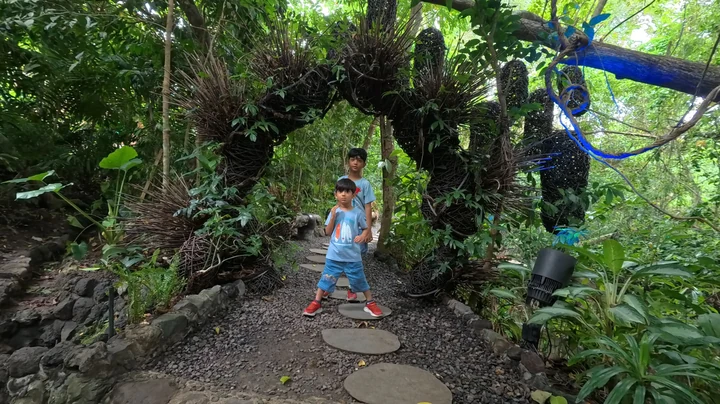
Two children under a garden arch
The children remain beneath the leafy arch. Dense leaf, branch and stone segments create an intricate landscape-format coloring page.
Print this coloring page
Ideas for your photos
Try a flower, an animal or a portrait with a clear silhouette. Color neighboring panes in different shades, or use a limited palette for a paper window-style design.
Choose a photo that works well
Choose bold shapes and a simple composition. Very busy photos can create small panes; review the outlines and print a sample at the size you intend to use.
Make this look in Lineora
Open Lineora on iPhone or Android and select a photo. Choose Stained Glass from the style picker, then generate your image. Compare the result with the original before saving, sharing or exporting a PDF. AI can reinterpret faces, lettering and small details; try a clearer crop if an important feature gets lost.
Which style should you choose?
Choose Stained Glass for connected pane shapes. Mandala builds repeating patterns around a center; Line Art simplifies the subject into fewer contours.
Turn a Photo into a Coloring Page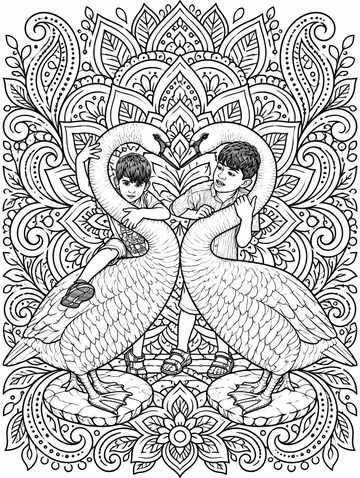
Save, share and print your result
Export a PDF from your gallery and check the paper size in your printer settings. Review the print preview and keep the margins visible. You can combine several finished drawings into one PDF.
Common questions
- Can I use the result as a glass-cutting template?
- It is intended for coloring on paper, not as a technically validated glass-cutting pattern. Download the free sample PDFs to color, or create a personal design in Lineora and review it before printing.
- Can I create a picture on this website?
- This website shows what Lineora can make. To transform your own photo, use the iOS or Android app. AI generation needs an internet connection.
- Does Lineora need a subscription?
- No. One credit pays for one finished drawing, and purchased credits never expire. At zero credits, you can earn a free drawing by watching a rewarded ad, subject to availability and daily limits.
- Can I print several drawings together?
- Yes. Select drawings in your gallery and export a PDF. For ad-funded drawings, the app can request an additional ad for sharing or PDF export and include a watermark.