Turn a Photo into a Cartoon in Webtoon Style
Convert a photo to a cartoon with Lineora’s Webtoon style. See three real comparisons, choose a portrait or scene, and create a soft-shaded illustration on iPhone or Android.
Create in the Lineora app for iPhone and Android. Download the app, select your photo and choose a style or activity.
What this style does
Webtoon turns the photograph into a color illustration inspired by Korean digital comics. Thin, clean contours, glossy hair, gentle gradients and soft background light give it a different finish from flat cel shading. It redraws the scene instead of simply placing an outline filter over the photo. Faces, clothing and scenery can change as the model interprets them, while the main pose and composition provide the starting point. Each generation creates one still cartoon image.
From the same photo
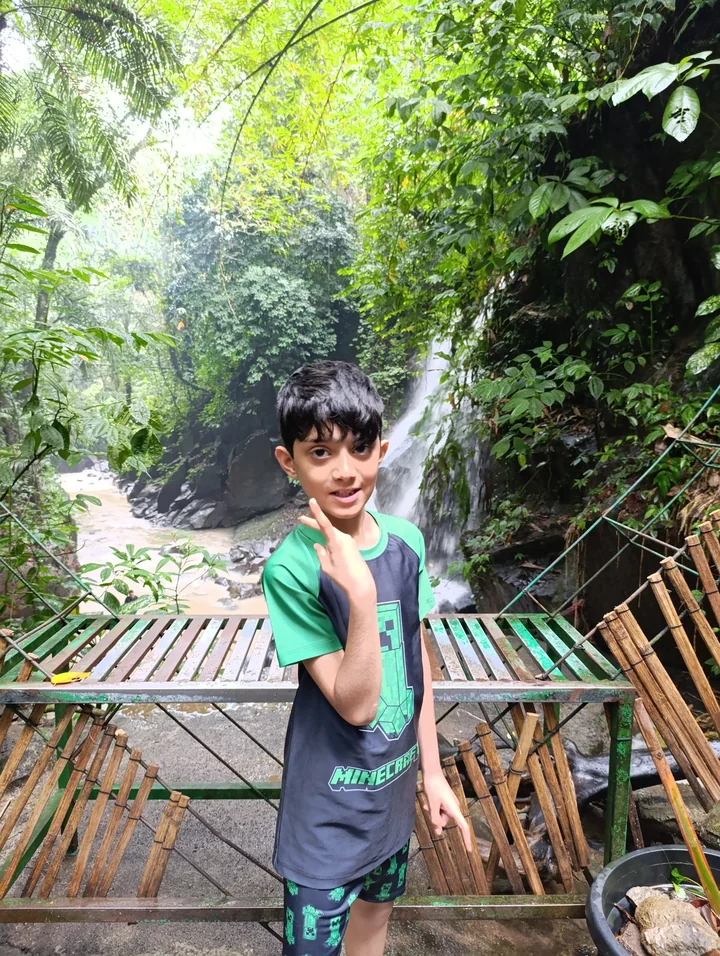
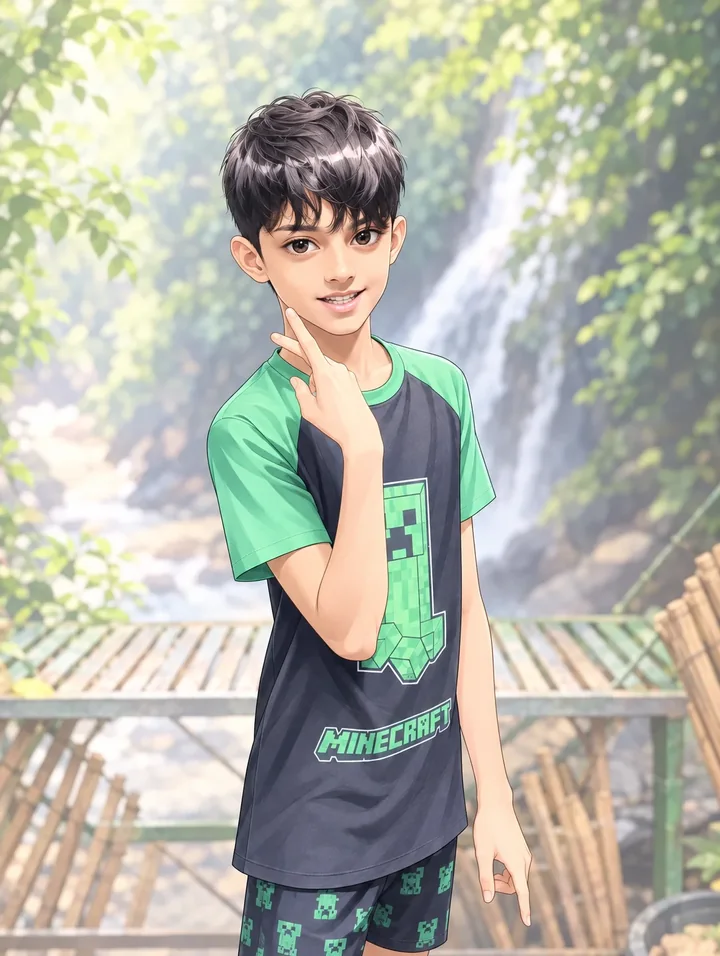
Portrait beside a waterfall
The face is redrawn with larger illustrated eyes and glossy hair; the waterfall and foliage soften into a bright background.
Rendered with Lineora’s High Quality option. Each generation can vary.
More photo examples
These photos were rendered with Lineora’s High Quality option. Results can vary; open either image for a closer look.
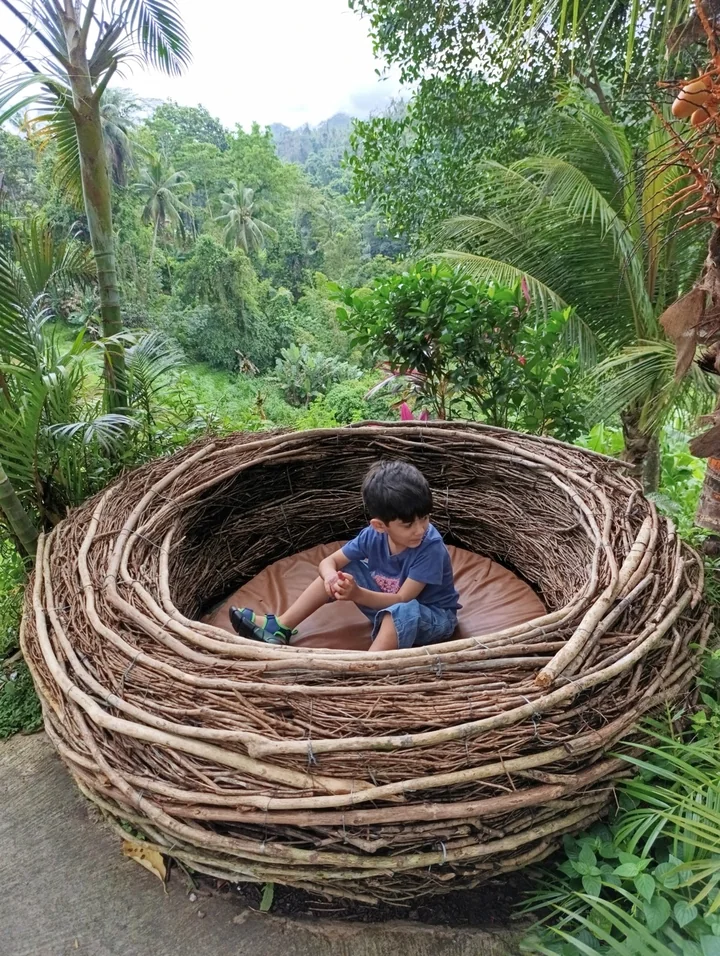
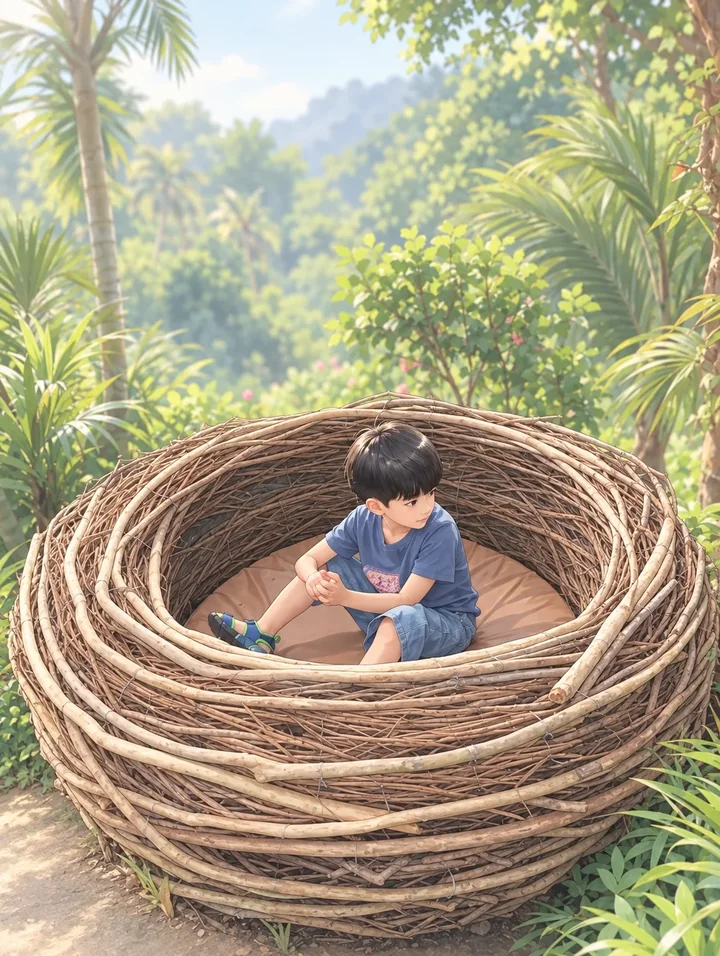
Child in a woven nest
The woven nest and seated pose remain recognizable, while thin illustrated lines and soft green light redraw the surrounding garden.
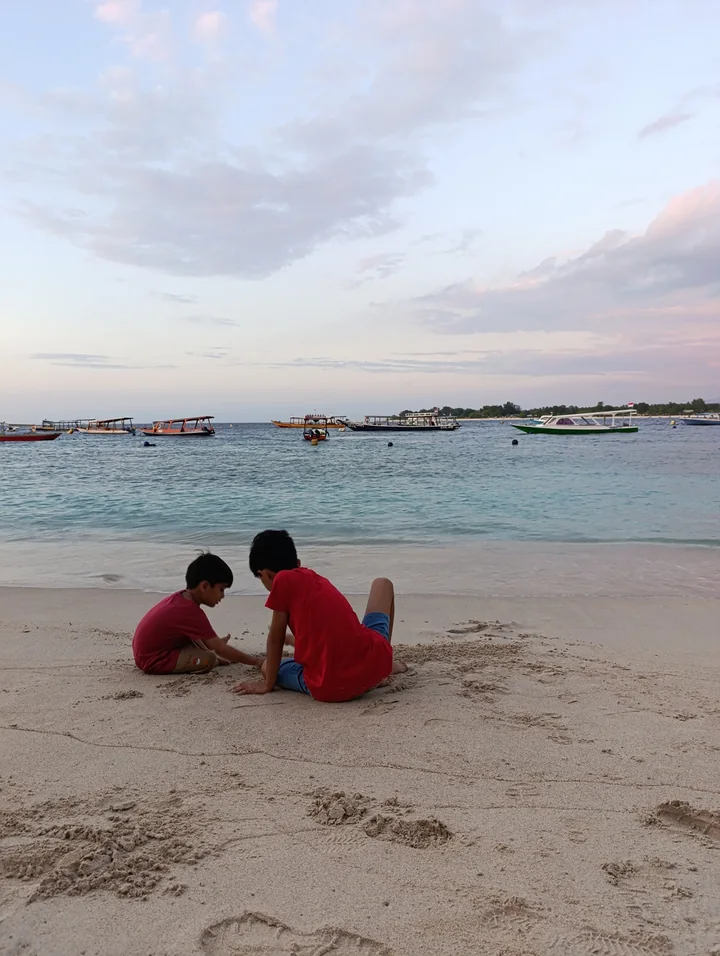
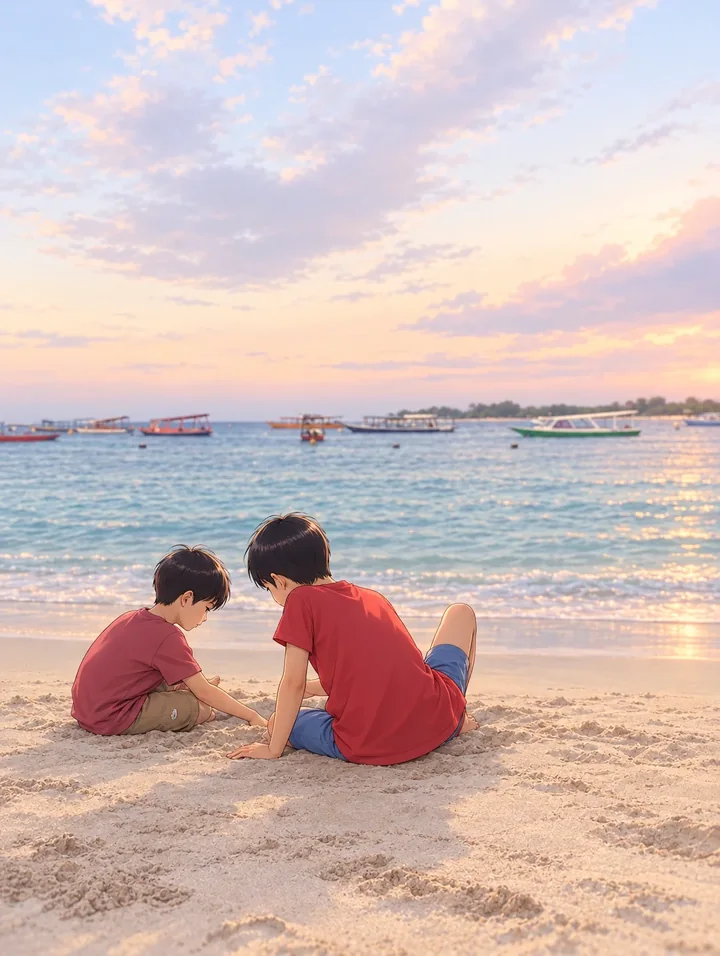
Two people on the beach
The two seated figures stay central, while the water, sand and sky become a softly shaded cartoon scene in warmer pastel colors.
Ideas for your photos
Turn a selfie into a cartoon profile picture, illustrate a couple’s photo, or give a travel memory the feeling of a comic scene. The examples here include a child in a woven nest, a closer waterfall portrait and two people on a beach, so you can compare scenery with faces. For an avatar, leave room around the head and check the final circular crop in the app where you will use it.
Choose a photo that works well
Start with visible eyes, even lighting and a subject large enough to recognize. Crop out a distracting passerby before generating. A distant scene can still look illustrated, but the face may become less specific; compare the nest example with the closer portrait. Review eyes, hands and clothing patterns at full size. For several people, check that each person is still represented before sharing the result.
Make this look in Lineora
Open Lineora on iPhone or Android and select a photo. Choose Korean Webcomic from the style picker, then generate your image. Compare the result with the original before saving, sharing or exporting a PDF. AI can reinterpret faces, lettering and small details; try a clearer crop if an important feature gets lost.
Which style should you choose?
Choose Webtoon for soft gradients and a polished comic illustration. Anime uses stronger cel-shaded areas and more animation-inspired features. Chibi deliberately exaggerates the head and shortens the body for a cuter character. The best choice depends on how much you want proportions and shading to change.
Turn a Photo into a Coloring Page
Save, share and print your result
Export a PDF from your gallery and check the paper size in your printer settings. Review the print preview and keep the margins visible. You can combine several finished drawings into one PDF.
Common questions
- Does photo-to-cartoon conversion create a comic strip or animated video?
- No. This style creates a single still image with a Webtoon look. It does not build a sequence of panels, add editable speech bubbles or animate the photo. Save the illustration and use a separate layout or video editor if your project needs those extra steps.
- Can I create a picture on this website?
- This website shows what Lineora can make. To transform your own photo, use the iOS or Android app. AI generation needs an internet connection.
- Does Lineora need a subscription?
- No. One credit pays for one finished drawing, and purchased credits never expire. At zero credits, you can earn a free drawing by watching a rewarded ad, subject to availability and daily limits.
- Can I print several drawings together?
- Yes. Select drawings in your gallery and export a PDF. For ad-funded drawings, the app can request an additional ad for sharing or PDF export and include a watermark.