Photo to LEGO-Style Minifigure: Brick Toy Art
Turn your photo into a glossy brick-toy character with Lineora. See three LEGO-style minifigure previews and tips for playful portraits and avatars.
Create in the Lineora app for iPhone and Android. Download the app, select your photo and choose a style or activity.
What this style does
Brick Toy reinterprets the person as a glossy plastic figure with a molded head, blocky body and toy-like hands. Clothing colors and recognizable features inspire the result, while the background is simplified or rebuilt as toy scenery. It creates a digital image, not a physical toy or an editable 3D model.
From the same photo
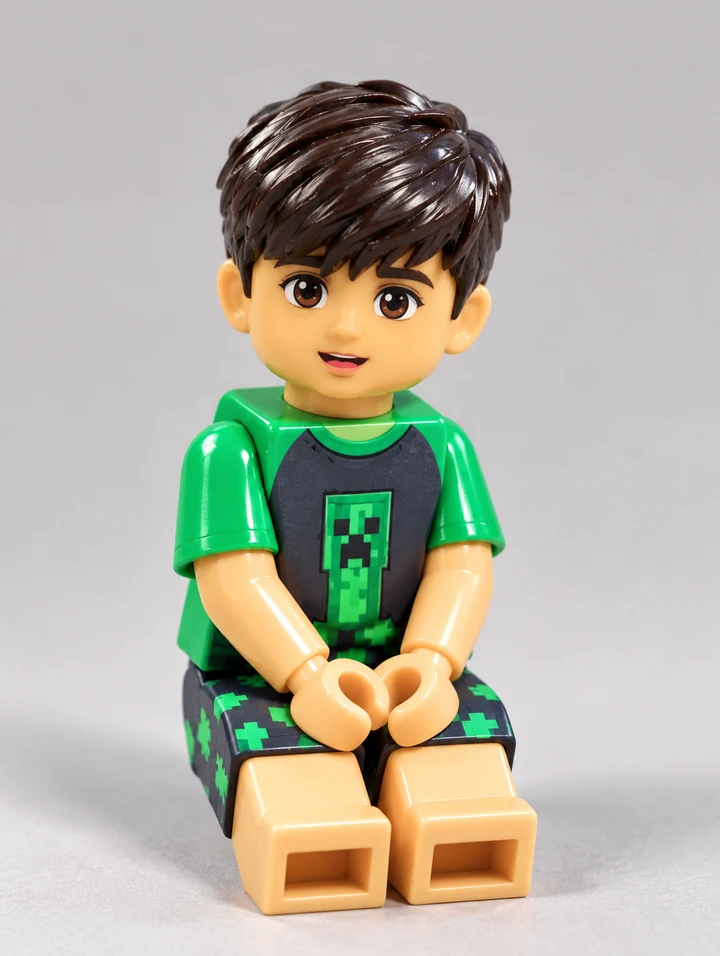
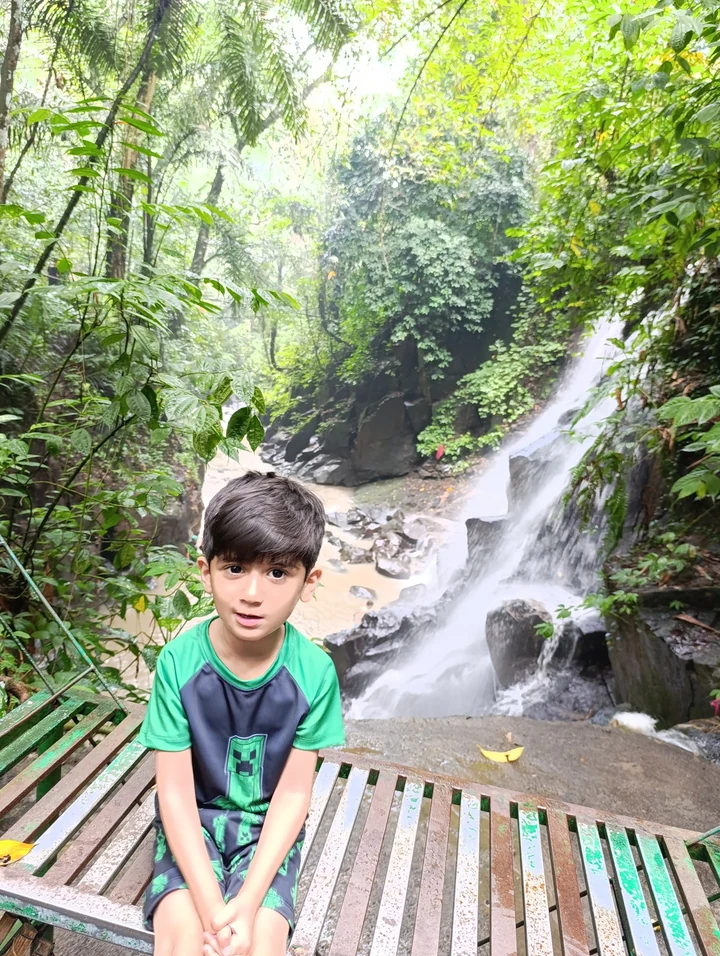
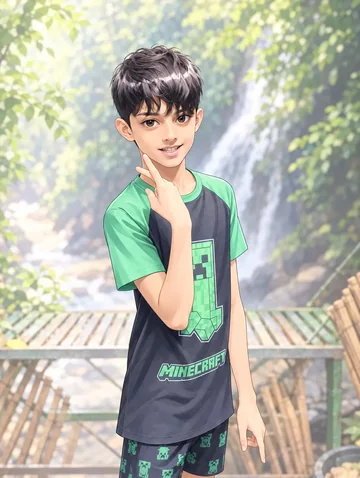
A green-shirt portrait by a waterfall
The green sleeves and smile carry into a seated plastic figure with molded hands and hollow toy feet. A neutral backdrop replaces the waterfall.
AI-generated illustration using this style’s prompt. This is a style preview, not an in-app capture; your result may differ.
More photo examples
These illustrated examples show how the style can reinterpret different photos. Compare the original and the preview to see changes in poses, faces and backgrounds.
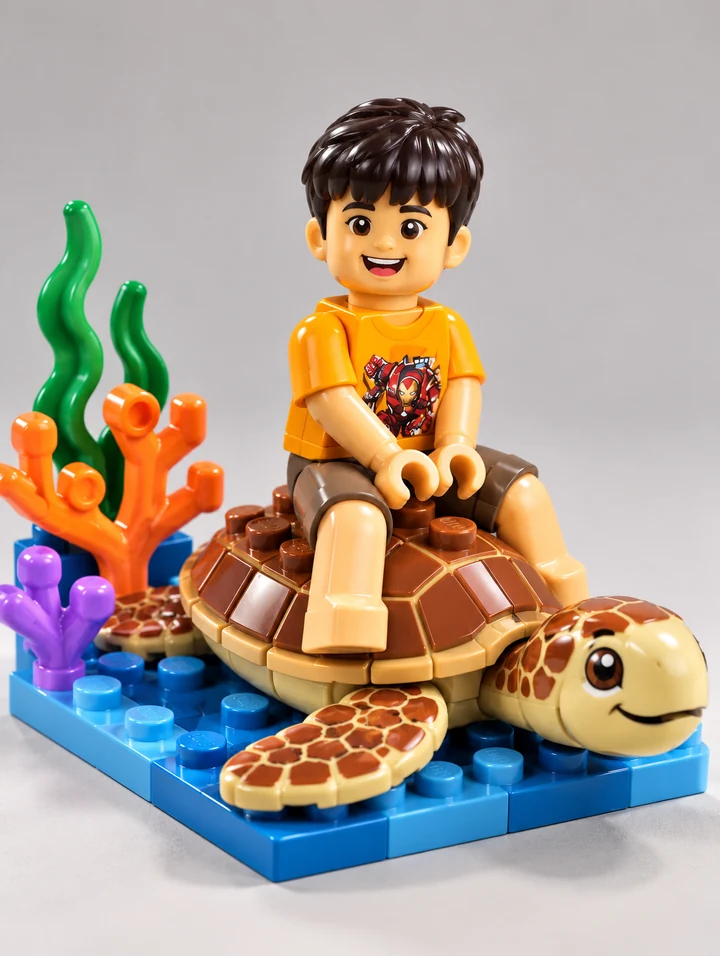
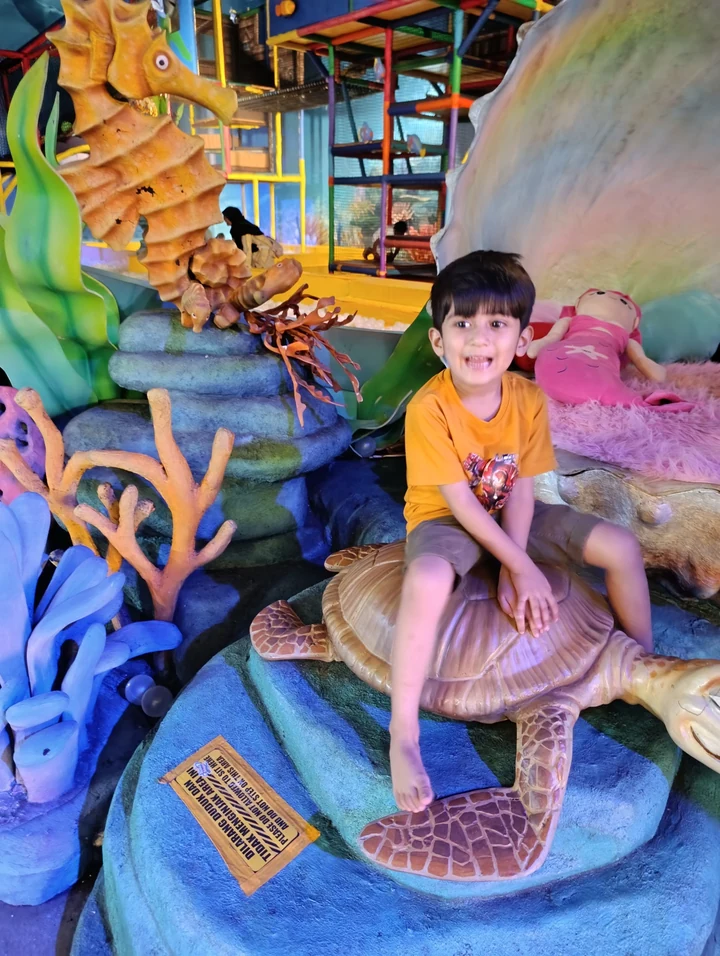
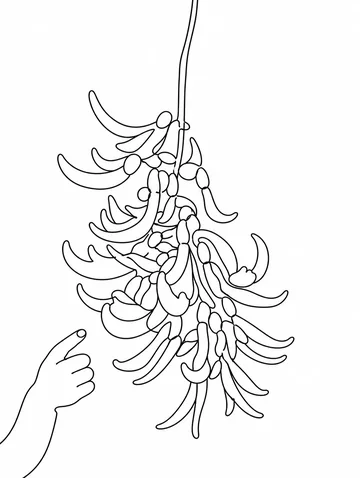
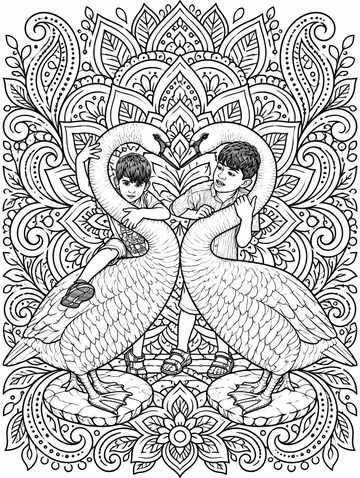
An orange-shirt portrait on a turtle sculpture
The orange shirt and turtle seat become a glossy figure and toy turtle. A blue studded base and simplified sea plants turn the setting into a miniature scene.
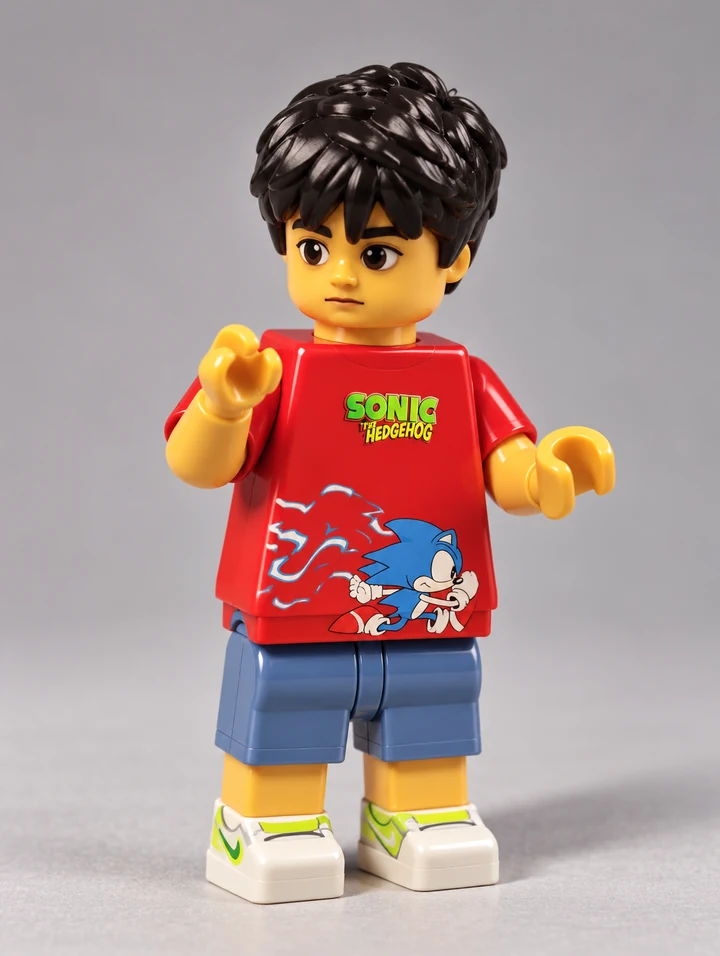
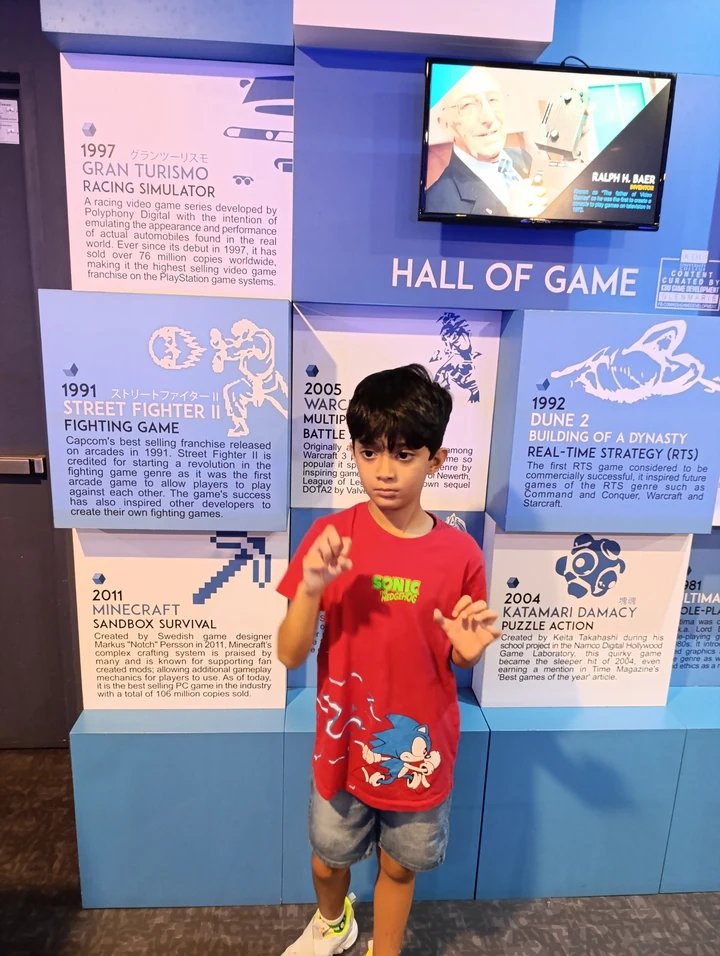
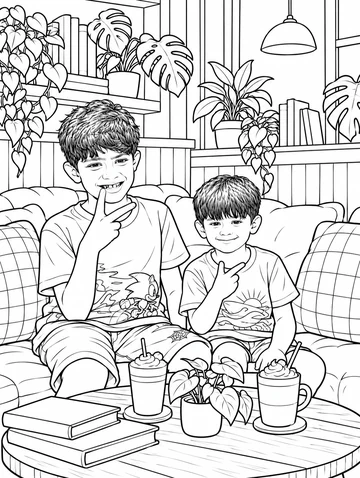
A red-shirt portrait in a gallery
The red shirt and blue shorts become printed toy clothing. Molded hands and bright shoes define the standing figure, while the gallery wall disappears.
Ideas for your photos
Try a playful profile picture, a family portrait with a toy-figure look, or an illustrated travel keepsake. A distinctive shirt or simple accessory can help the character feel personal. Check faces, printed details and the crop before sharing or printing the image.
Choose a photo that works well
Choose a well-lit photo with a visible face and clear clothing. A simple seated or standing pose is a useful starting point. Small logos, fingers and text may be altered, and the figure is an interpretation rather than an exact likeness or a catalog of real toy parts.
Make this look in Lineora
Open Lineora on iPhone or Android and select a photo. Choose Brick Toy from the style picker, then generate your image. Compare the result with the original before saving, sharing or exporting a PDF. AI can reinterpret faces, lettering and small details; try a clearer crop if an important feature gets lost.
Which style should you choose?
Choose Brick Toy for a blocky plastic minifigure look. Action Figure creates a collectible-figure appearance, while Chibi makes a cute illustrated character with exaggerated proportions. Brick Toy does not produce a brick mosaic, parts list or building instructions.
Turn a Photo into a Coloring Page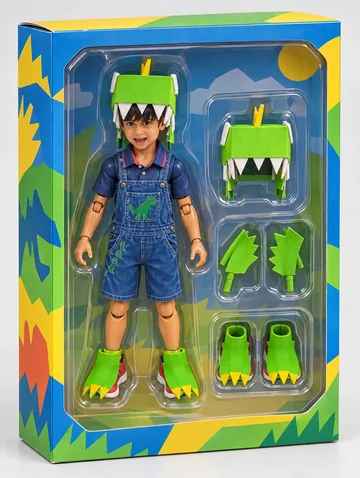

Save, share and print your result
Export a PDF from your gallery and check the paper size in your printer settings. Review the print preview and keep the margins visible. You can combine several finished drawings into one PDF.
Common questions
- Can I use this to order or build a custom LEGO minifigure?
- No. Lineora creates a digital illustration inspired by your photo. It does not order a toy, identify purchasable parts or supply assembly instructions. LEGO is a trademark of the LEGO Group, which does not sponsor, authorize or endorse Lineora.
- Can I create a picture on this website?
- This website shows what Lineora can make. To transform your own photo, use the iOS or Android app. AI generation needs an internet connection.
- Does Lineora need a subscription?
- No. One credit pays for one finished drawing, and purchased credits never expire. At zero credits, you can earn a free drawing by watching a rewarded ad, subject to availability and daily limits.
- Can I print several drawings together?
- Yes. Select drawings in your gallery and export a PDF. For ad-funded drawings, the app can request an additional ad for sharing or PDF export and include a watermark.